Archive for the ‘Networking’ Category

A few steps to secure a FreeNAS server

April 6, 2010

Change the web gui admin user name in System|General under WebGUI->Username.

Change the default password in System|General|Password.

Setup key pair authentication for SSH and secure FreeNAS.

Clean out any existing files in ~/.ssh on your client machine.
At command prompt on client:

$ ssh-keygen -t rsa

agree to location that ssh-keygen wants to store the keys… ~/.ssh
Enter a pass phrase twice to confirm. This is the pass phrase for the public key.
Keys are now in ~/.ssh

I created the home directory in /mnt/FileServer and chown’d it to root:wheel.

mkdir /mnt/FileServer/home
chown root:wheel /mnt/FileServer/home

Created the myuser directory in /mnt/FileServer/home.
In the web UI Access|Users|Edit for my user. I set the Home directory to /mnt/FileServer/home/myuser/
The reason we can’t use the default ~ directory of /mnt is because everything in front of /mnt/FileServer (the mount point of my RAID) is part of the FreeNAS ROM.
It’s destroyed on each reboot. Matt Rude brought this to my attention here
Log in to FreeNAS using SSH

ssh myuser@nameoffileserver

create the .ssh directory on /mnt/FileServer/home/myuser/
as myuser, create the authorized_keys file in /mnt/FileServer/home/myuser/.ssh if it doesn’t already exist

$ touch authorized_keys

Copy the public key to the file server

scp ~/.ssh/id_rsa.pub myuser@nameoffileserver:

Make sure you have the collan at the end of the above command, else the file won’t be copied.
Type yes to the prompt that the authenticity of the server you are tryign to scp to can’t be established and you want to continue.
The server you are trying to connect to is added to the list of known hosts on the local machine.
Thats /home/myuser/.ssh/known_hosts
On the server, from the ~ directory (thats /mnt/FileServer/home/myuser in our case)
The public key needs to be put into the list of authorized clients that may connect to the sshd.

$ cat id_rsa.pub >> .ssh/authorized_keys

Although this is a better way to copy the public key:

ssh-copy-id MyUserName@MyWindows7Box

We need to change some permissions on…
your home directory on the server (/mnt/FileServer/home/myuser) may have the wrong permissions. We need to remove the write perms for group and other.

$ su root
# chmod go-w /mnt/FileServer/home/myuser

The /mnt/FileServer/home/myuser/.ssh currently had 755 so

# chmod go-w /mnt/FileServer/home/myuser/.ssh

had no effect.
/mnt/FileServer/home/myuser/.ssh/authorized_keys needed to be chmod 600. In fact anything/everything in the ~/.ssh dir (if there is anything else) needs to be chmod 600

Also need to

nameoffileserver:/mnt/FileServer/home/myuser/.ssh# chown myuser authorized_keys

We can now remove the ~/id_rsa.pub from the server, now that the key is in ~/.ssh/authorized_keys

$ rm ~/id_rsa.pub

Should now be able to log in using key pair authentication.

Turn password authentication off, and changed the default ssh port in the web gui Services|SSH.

Turned ssl on to access the web gui in System|General Setup.

When I open up the FreeNAS server to the internet, it’ll be by way of SSH tunnel rather than just opening up the firewall to https to the server.

Looks like there is a pretty simple guide here to do that.

Used the following resources:

http://www.learnfreenas.com/blog/
http://phanvinhthinh.blogspot.com/2010/02/how-to-secure-your-freenas-server.html
http://www.freenaskb.info/kb/?View=entry&EntryID=257
http://www.learnfreenas.com/blog/2009/07/22/how-to-connect-to-your-freenas-server-via-ssh-without-a-password-password-free-logins-via-public-key-authentication/
http://www.freebsd.org/doc/en/articles/committers-guide/ssh.guide.html

Adding disks, CIFS/SMB shares to FreeNAS

March 27, 2010

Add Disks:

What I did, was add a disk at a time (one each week, and stressed it for the entire week).
This way the wear on the disk should be staggered and we are less likely to have all drives fail at the same time.
Once I’d physically added all disks (ended up adding 4 x WD7500AACS for now).

Follow directions here.
This set of directions is also useful: http://freenas.org/contrib/sloan/freenas1.htm
I used software RAID 5.
I was keen to setup a raid-z using ZFS, but it’s still only an experiemental release.
Plus when I install the new RAID card, I’ll have to rebuild the array anyway, and by then, hopefully ZFS will be production ready (thanks to Olivier Cochard-Labbé and iXsystems).
Each disk I added I chose to set the Hard disk standby time to 60 minutes.
Turned the S.M.A.R.T. monitoring on.
Chose Unformated for the Preformatted file system for each disk I added as they were new disks.

Format Disks:

Format each of the disks for Software RAID.
Again following directions here

Create the software RAID array:

While the RAID is building you can continue to the next step.
It took about 12 hrs to build the array.

Format the software RAID array:

Format the array as UFS (GPT and Soft Updates).
This is BSD’s native file system.

Create the mount point:

Partition type set to GPT partition.
File system set to UFS.
Called my Share Name “FileServer”.
This will mount the array on /mnt/FileServer

Add the groups and users in the Web GUI

Access|Users:

groups:

family, sons-name, my-name, wifes-name

users:

guest:
Primary group
——guest
Additional group
——none
Other settings as default.
——enter passwords.
sons-name:
Primary group
——sons-name
Additional group
——family
Other settings as default.
——enter passwords.
my-name:
Primary group
——my-name
Additional group
——family, wheel (wheel is like admin in windows)
Other settings as default.
——enter passwords.
——enable bash Shell so I can ssh
wifes-name:
Primary group
——wifes-name
other settings same as sons-name

Enable SSH in web gui:

Services|SSH

Login to the file server and create the directories you will be sharing:

You can do this via the Web GUI (Advanced|File Manager (make sure you login as admin)) or just SSH to the shell.
I find going directly to the shell easier.

ssh [your user name]@<hostname>
Create the directories (family, media, etc) I want to share and set appropriate ownership and permissions.
I set my ownerships and perms up the same as my existing file server. I also had these recorded in a text document.

Enable CIFS/SMB In the Settings:

Authentication set to Local User.
Local Master Browser set to Yes.
Time server set to No, as I have another server doing the honors.
In Auxilary parameters, I added some of the params I used in a smb.conf file from my existing file server.
Some of these parameters in the global section.

Create the smb shares on top of FileServer (family, media, etc).
As is stated in this thread:

Set permissions in the following places:

Disk mount point, set file/directory creation masks, override inheritable permissions option in the CIFS/SMB share itself.
The creation masks I used from a smb.conf I already had setup on another file server (mouse).
These go into Auxiliary parameters on each share.

Setup Email alerts on disk failure and disk heat:

This is done in Disks|Management|S.M.A.R.T.
Heat on each of my first 3 disks Only gets to around 30 tops (in summer (room temp 24 deg c)). The bottle kneck is the 100Mb port on the switch. This only allows 100Mb total to/from the file server.
So the disks never really get a chance to heat up at this stage.
The last (4th) disk I added was getting to around 33 deg c, as it wasn’t sitting behind a fan. So I added an old 80/20mm fan I had, and stuck it in front of it, now the drive runs cooler than all the others.
Enable self monitoring.
Set Check interval to 300 (5 min).
Power mode Standby. I only want the disks checked if they are spining).
Temperature monitoring
Difference set to 5 deg c
Informal set to 33 deg c
Critical 36 deg c
Setup Scheduled self-tests in order to receive email alerts if a disk is offline.
If it’s off line I need to add another disk and re-build the array.
Directions for replacing a failed hard drive here.
Add each disk and select all hours, all days, all months, all week days and choose Offline Immediate Test.
Set the email address you want alearts to be sent to and select the Send TEST warning email on startup until your happy you have it all set up correctly.
You’ll also need to setup the email settings in System|Advanced|Email
The From email is the same as the email recipient.
If using gmail…
Outgoing mail server: smtp.googlemail.com
Port: 465
Security SSL
Username: this will be your email address.
Enter password.
Authentication method: Login
Save and Send test email.
Then back in Disks|Management|S.M.A.R.T.
Save and Restart samba.

Tested this configuration over a week.
Disks never seemed to spin down.
According to Diagnostics|Information|Disks (ATA)
APM (Advanced Power Management) is not supported on my disks (WD750AACS)
In which case there is no point in setting the Advanced Power Management or Acoustic level on Disks|Management|Disk|Edit for each disk.

Initial setup of (FreeNAS) file server

February 7, 2010

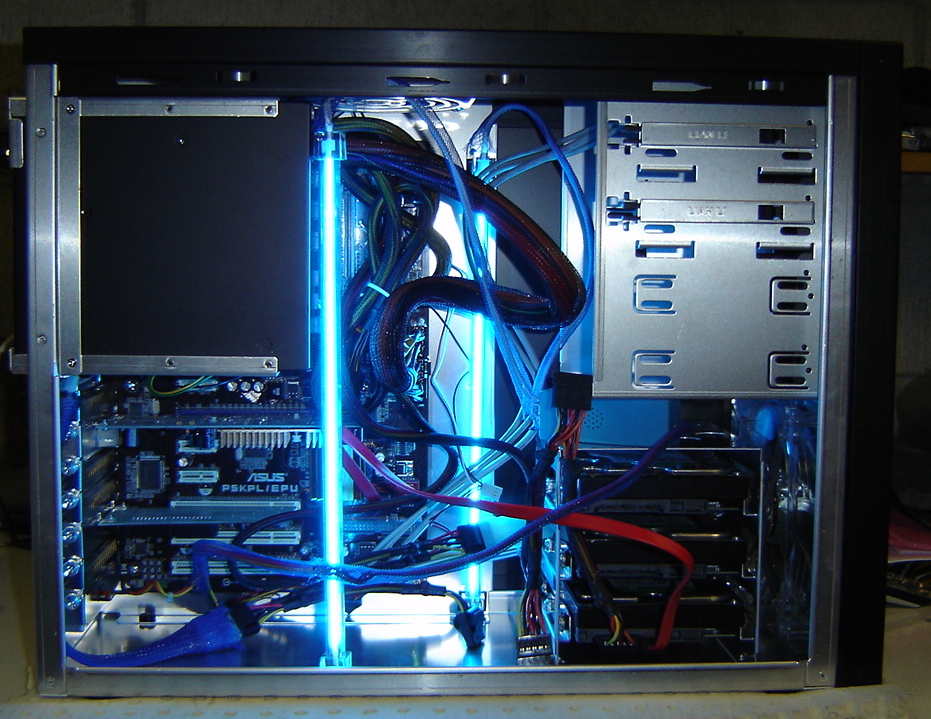
Components used:

AData Speedy Compact Flash card: NZ$30
Lian Li PC-A06FB Aluminium Case: NZ$170
ASUS p5kpl/epu Mobo: NZ$96.40
Celeron 1.8Ghz single core #430: NZ$70
Corsair 2GB KIT (2x1GB) DDR2 800Mhz DIMM PC6400 – Desktop RAM – TWIN2X2048-6400C4: NZ$104
P/S ZM750-HP NZ$257:33
2 x HDD swap trays. 3 SATA 3.5″ in 2 5.25″ bays just under NZ$300 incl shipping (havn’t got these yet).
5 x WD7500AACS HDD’s (already had these)(only using 3 for now).
Cold cathode tubes that were lying around.

The Lian Li case I chose had 4 x 5.25″ bays for HDD trays.
Using the 3 in 2 hot swap trays, I can get 6 HDD’s in to 4 5.25″ bays.

At this stage I didn’t get the 3 in 2 hot swap trays due to lack of funds.
Plus I’ll only install 3 750GB drives (I already have) at this stage.
I’ll put more drives in once I acquire a decent RAID card.
Something similar to the Adaptec RAID 3805.
The p5kpl/epu has a Gbit LAN interface, which is essential for me, as my ESX server guests will have most of their data on it.
Further down the track I’d like to get another Gbit NIC (maybe with several ports) and use LACP (Link Aggregation Control Protocol) to share the load between the NIC’s.
My current Cisco switch only has 2 Gbit ports though so I’ll need an extra Gbit switch that supports LACP.
Or may use Roundrobin or Loadbalance as the aggregation protocol in FreeNAS.
Yet to be decided.

Had quite a bit of trouble trying to install to a AData Compact Flash 2GB in a CF Card to IDE HDD adapter.

The BIOS (latest revision) wouldn’t detect it.
Tried another adapter/16MB CF SanDisk from one of my other embedded project machines in the file server and it was recognised fine.
Tried previous adapter (the one I purchased for this project) and another 16MB CF SanDisk from one of my other machines in the file server and it was recognised fine.
Tried the previous adapter (the one I purchased for this project) and 2GB CF card in another old machine and it was recognised fine.
So looks like the P5KPL/EPU BIOS has a problem detecting the 2GB AData CF card.

I had an old USB 1GB thumb drive I decided to use, this worked.
I’d rather use a CF Card to IDE HDD adapter with CF card as it’s all hidden inside the case.
May end up trying a SanDisk 128MB CF card.
They have 2 x packs on ebay for US $24 incl shippping.
All I have to do once I acquire a compatible CF card is redo the install (10 seconds)
and replace the config file that I’ll save once I’ve got FreeNAS setup and configured.

The file I used to do the install was from source forge.
You can find it from http://freenas.org/downloads -> http://sourceforge.net/projects/freenas/files/
I got a copy of the FreeNAS-amd64-LiveCD-*.iso.
Burnt the image to a CD.
And used an old CD ROM drive to do the honors.
I chose option 9) Install/Upgrade to hard drive/flash device, etc.
Then option 1) Install ’embedded’ OS on HDD/Flash/USB
I don’t need swap as I have 2GB of RAM, and I don’t want to be writing to my flash memory.
Installed in aprx 10 seconds.
Removed CD and rebooted to FreeNAS.

Now to setup the NIC’s and set the LAN IP address.
Choose option 1) Assign Interface and follow the prompts.
Choose option 2) Set LAN IP address.
Once you’ve done this, you can login to the Web UI. http://<the ip address you chose>
Default username is admin. Default password is freenas.
Make sure you change these credentials as soon as you can.
I was using an old version of the installer, so I downloaded the FreeNAS-amd64-embedded-*.img from sourceforge.
From the FreeNAS WebUI System menu -> Firmware I choose the img I downloaded and hit Upgrade firmware.
It’s important not to interupt the upgrade while it’s working.

Once you have everything setup and configured, you can save the FreeNAS config to a safe place for a restoration at a later stage if the need arises.

Most of the details I used were here:

Informative videos on setting up FreeNAS:

http://freenas.org/contrib/sloan/freenas1.htm

Informative video for ZFS on FreeNAS:


Design a site like this with WordPress.com
Get started