Archive for the ‘Networking’ Category

Excluding ads from your browsing experience

June 6, 2011

If you like the idea of

  • Saving bandwidth
  • Removing annoying adds while browsing the web
  • Minimising the likelihood of having your privacy compromised, by way of spy-ware, unwanted analytics, Cross-Site Scripting (XSS), and others
  • Gaining control over who can download what
  • Monitoring what exactly is being downloaded or even attempted

Keep reading, if you’d like to know the process I took to acquire the above.

hosts file

Most/all Operating Systems have a hosts file.

You can add all the dodgy domains you want blocked, to your hosts file and direct them to localhost.
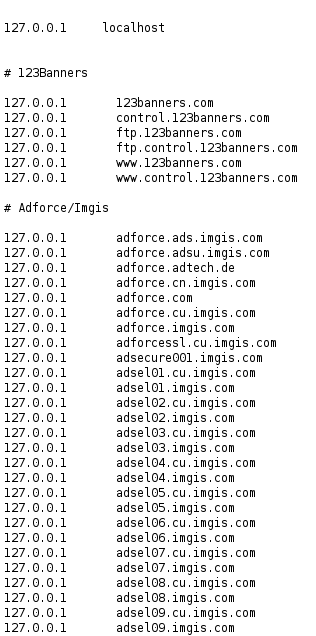
Example of hosts file with blocked domains

Providing your hosts file is kept up to date.
This is one alternative to blocking these domains.

Example host files

http://hostsfile.mine.nu/downloads/
http://winhelp2002.mvps.org/hosts.htm
http://someonewhocares.org/hosts/

On some systems if you add the dodgy sites to your hosts file, you may experience the “waiting for the ad server” problem.
As far as your browser is concerned, these URL’s don’t exist (because it’s looking at localhost).
Your browser may wait for a timeout for the blocked server.
In this case you could use eDexter to serve up a local image instead of waiting for a server timeout.
At this time, only OS X and Windows versions are available.

There is an alternative.
JavaDog will apparently run on all platforms that have the Java VM.
This doesn’t appear to be in the Debian repositories. At least not the ones I’m using.
I read here “As for Edexter, Firefox in Linux doesn’t seem to have the “waiting for the ad server” problem Mozilla in windows had.”

From my experience it does.

I had a quick look at JavaDog for Linux.
Found this site

It can be an administrative pain to keep the hosts file up to date with the additions and removals of domains.
Although Linux users could use the script here to do the updating.
This could be added to a Cron job in Linux.

If your on a windows box you may run into another type of slow down every 25 minutes for 5 minutes with apparently 100% CPU usage resulting in the described DNS cache timeout error.
There is a workaround, but I wouldn’t be very happy with it. Disabling the DNS client service.
If you rely on Network Discovery (enables you to see other computers on your network and for them to see you), this is not going to be a solution.

As stated here
A better Win7/Vista workaround would be to add two Registry entries to control the amount of time the DNS cache is saved.

  • Flush the existing DNS cache (see above)
  • Start > Run (type) regedit
  • Navigate to the following location:
    HKEY_LOCAL_MACHINE\SYSTEM\CurrentControlSet\Services\Dnscache\Parameters
  • Click Edit > New > DWORD Value (type) MaxCacheTtl
  • Click Edit > New > DWORD Value (type) MaxNegativeCacheTtl
  • Next right-click on the MaxCacheTtl entry (right pane) and select: Modify and change the value to 1
  • The MaxNegativeCacheTtl entry should already have a value of 0 (leave it that way – see screenshot)
  • Close Regedit and reboot …
  • As usual you should always backup your Registry before editing … see Regedit Help under “Exporting Registry files”

If you decide to give the hosts file a go
On Linux it’s found in /etc
On Windows it’s location is defined by the following registry key
HKEY_LOCAL_MACHINE\SYSTEM\CurrentControlSet\Services\Tcpip\Parameters\DataBasePath

 Usually here

Windows 7/Vista/XP    =    C:\WINDOWS\SYSTEM32\DRIVERS\ETC
Windows 2K               =    C:\WINNT\SYSTEM32\DRIVERS\ETC

Make sure you backup the hosts file in case anything goes wrong.
Make sure you don’t remove what’s already in your default hosts file. especially the first line that has the loop back address

127.0.0.1              localhost
127.0.1.1              [MyComputerName].local          [MyComputerName]

Just add the new entries at the bottom of the hosts file.
Remove any duplicate entries.
You will then have to flush your DNS cache if you have one.

If your on windows

Clear your browsers cache.
Close all browsers.
From a cmd prompt run the following

ipconfig /flushdns

or reboot the machine.

If your on Linux (Debian)

Clear your browsers cache.
That may be all you need to do.
Otherwise
At the command prompt (as root) try

/etc/init.d/nscd restart

or for other Linux distros
“killall -hup inetd” (without the quotes) which will restart the inetd process and should not require a reboot.
I found that just updating the file was enough to see the changes,
as my default Debian Lenny install doesn’t have a DNS cache.

Adblock Plus

 I decided to just give the Firefox add-on Adblock Plus a try
as I thought it would be allot easier and less (zero) administrative overhead.
Just make sure you’ve got a good filter subscription selected. I used EasyList (English).
As I was on Lenny. Adblock Plus wasn’t available for Iceweasel (firefox on debian) 3.0.6 unless I installed the later version of Iceweasel from the backports.debian.org repository.
I looked in the Tools->Add-ons->Get Add-ons and searched for Adblock Plus.
I was planning on performing a re-install of Debian testing soon anyway, but was keen on giving Adblock Plus a try now.

Installing Iceweasel (firefox) from backports

Most won’t have to do this, but I’m still on old stable.
This site is quite helpful
For most people they will just have to make a change to their /etc/apt/sources.list
If you are running Debian Lenny you would have to add the following line:

deb http://backports.debian.org/debian-backports lenny-backports main contrib non-free

For later versions of Debian substitute the version specific part with your versions code name.
As I’m using apt-proxy to cache my packages network wide, I had to make sure I had the following section in the /etc/apt-proxy/apt-proxy-v2.conf file

[backports]
 ;; backports
 backends = http://backports.debian.org/debian-backports
 min_refresh_delay = 1d

and the following in the client pc’s /etc/apt/sources.list

deb http://[MyAptProxyServer]:[MyAptProxyServersListeningPort]/backports lenny-backports main contrib non-free

You can see how the directory structure works for the repositories.
In this case have a look at http://backports.debian.org/debian-backports/
in dists you will see lenny-backports as a subdirectory.
Within lenny-backports you’ll see main, contrib and non-free
Now just add the below section to the client pc’s /etc/apt/preferences file
In my case I didn’t have this file, so created it.
What’s this for?
If a package was installed from Backports and there is a newer version there,
it will be upgraded from there.
Other packages that are also available from Backports will not be upgraded to the Backports version unless explicitly stated with
-t lenny-backports
Check the apt_preferences man page as usual for in depth details.

# APT PINNING PREFERENCES
 Package: *
 Pin: release a=lenny-backports
 Pin-Priority: 200

Now as root

apt-get update
apt-get -t lenny-backports install iceweasel

Now because we’ve added the /etc/apt/preferences file,
when ever there are updates to the backported version of iceweasel,
we’ll get them for Iceweasel when we do a

apt-get upgrade

Now through iceweasel’s Tools->Add-ons->Get Add-ons
and a search for Adblock Plus now revealed the plugin.
Installed it and selected the EasyList (English) filter subscription.
Browsed some sites I knew there were popups and ads I didn’t want and it worked great!
Adblock Plus gives good visibility for each request made,
as to what it’s blocking, could possibly block etc, through it’s Close blockable items menu Ctrl+Shift+V

So personally I think I’d stick with the add-on (for firefox users that is) going forward, as it seemed like it just worked.
Not sure about other browser platforms.

Now I use this with the NoScript pluggin also,
which I find great at stopping javascript, flash and other executable code from being run from domains I’m not expecting it to be run from.

I’m also using OpenDNS as name servers.
They provide allot of control over what can be accessed by way of domain.
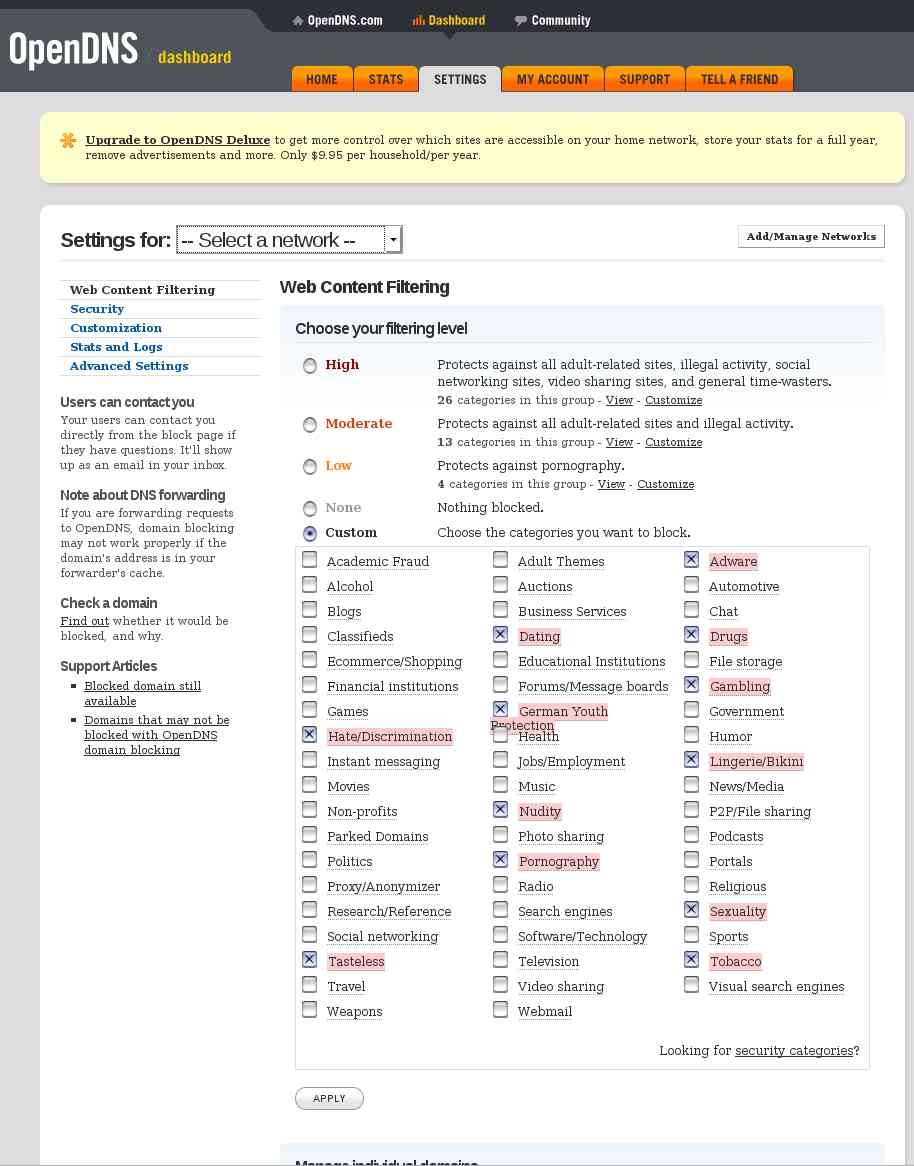
You can also provide custom images and messages to be displayed for requested sites that you don’t want to allow.
Statistics of who on your network is accessing which sites and which sites they are attempting to access.
Plus allot more.

I’m looking into using
Squid with
Snort or
Privoxy
and  to take care of allot more.
Provide anonymous web browsing.
Content caching.

Resources

http://hostsfile.mine.nu/
http://winhelp2002.mvps.org/hosts.htm
http://www.accs-net.com/hosts/hostsforlinux.html

There is also a good pod-cast on the hosts file by Xoke here.

Password-less Repository Authentication for Mercurial

June 3, 2011

I setup a free account a short while ago at bitbucket with the intention of creating a version control repository for Hg.
So far this has worked out well.

Although every time I communicated with the back end repo I’d have to enter my credentials.
I realized if I added my user name to the URL, I’d only receive a password prompt.

https://MyUserName@bitbucket.org/MyUserName/MyRepoName

If I also added my password in the URL I wouldn’t be prompted for anything.

https://MyUserName:MyPassword@bitbucket.org/MyUserName/MyRepoName

Obviously I didn’t want to be entering this each time I communicated with my back end repo,
also especially with my password in plain text on the screen.
So I did a little research.

TortoiseHg comes bundled with the keyring extension.
So if your using TortoiseHg you don’t even have to install it.
Just add the following to your mercurial.ini file in your user directory.

[extensions]
mercurial_keyring=

You’ll also have to edit your repository specific hgrc file.
If this file doesn’t already exist, create it.

[paths]
bitbucket = https://LethalDuck@bitbucket.org/LethalDuck/code-scripts
default = https://LethalDuck@bitbucket.org/LethalDuck/code-scripts

You could put your password in the above URL too, but that kind of defeats the purpose of using the keyring.
So you associate your username with the URL you are wanting to communicate with.
Now you can add as many URL’s as you like.
As you can see I’ve just added the same one twice, as an experiment to see how it’s handled.
In Repository Explorer, it’ll look like this…

Now when you select either of the URL’s to push to or pull from,
the keyring will prompt for your password once and store it encrypted.

After that, the stored encrypted password is used
and no more prompt.

Resources:
http://stackoverflow.com/questions/1997601/store-password-in-tortoisehg

Using PSCredentials

June 2, 2011

I’ve been working on a small project that shuts down machines attached by network and of course power feed to an APC Smart-UPS.
The code that was shutting down the guests required authentication to be passed to the receiving services.

I decided to give the following PowerShell cmdlets a try.

  • Get-Credential
  • ConvertTo-SecureString

———————————————————————————-

Script that creates the password file

(Set-Credential.ps1) looks like this:

Param($file)
$credential = Get-Credential
$credential.Password | ConvertFrom-SecureString | Set-Content $file

Get-Credential prompts for a username and password and creates the PSCredential associating the password with the username.
ConvertFrom-SecureString from the PS documentation…
The ConvertFrom-SecureString cmdlet converts a secure string
(System.Security.SecureString) into an encrypted standard string (System.String).
Then writes the string to the file specified.

Set-Credential can be invoked like this:

C:\Scripts\UPS\Set-myCredential.ps1 C:\Scripts\UPS\mp.txt

———————————————————————————-

Script that reads the password file

(Get-Credential.ps1) into a SecureString.
Then creates the PSCredential based on the username provided and the password as a SecureString.
Then returns the PSCredential:

Param($user,$passwordFile)
$password = Get-Content $passwordFile | ConvertTo-SecureString
$credential = New-Object System.Management.Automation.PsCredential($user,$password)
$credential

———————————————————————————-

By the look of it, when creating the encrypted password Get-Credential adds some machine specific information.
As the password file is not machine agnostic (can’t be shared or tranfered).

From my PowerShell script that loaded the assembly into memory and started the shutdown procedure, it looked something like this.

param (
   [parameter(Mandatory=$true, position=0)][string] $scriptPath,
   [parameter(Mandatory=$true, position=1)][string] $fileServerName,
   [parameter(Mandatory=$true, position=2)][string] $fileServerUser,
   [parameter(Mandatory=$true, position=3)][string] $vSphereServerName,
   [parameter(Mandatory=$true, position=4)][string] $vSphereServerUser
)

Set-StrictMode -Version 2.0
# Creates a .net assembly in memory containing the PowerOffUPSGuests class.
# Then we call the InitShutdown passing the details of the machines that need to be shutdown.

$credentialRetrievalScript = Join-Path -Path $scriptPath -ChildPath 'Get-Credential.ps1'
$fileServerUserPwLocation = Join-Path -Path $scriptPath -ChildPath 'FileServerPw.txt'
$vSphereServerUserPwLocation = Join-Path -Path $scriptPath -ChildPath 'VMHostPw.txt'

# names of the ServerController's I.E. the collection of servers that will be shutdown
# these class's need to exist in the $scriptPath and derive from ServerController
$freeNASController = 'FreeNASController'
$vMServerController = 'VMServerController'

# instantiate the credential objects
$fileServerCredential = & $credentialRetrievalScript $fileServerUser $fileServerUserPwLocation
$vSphereServerCredential = & $credentialRetrievalScript $vSphereServerUser $vSphereServerUserPwLocation

# add the assembly that does the work.
Add-Type -Path .\PowerOffUPSGuests.dll

# instantiate a ServerAdminDetails for each server we want to shutdown
$fileServerAdminDetailsInstance = New-Object -TypeName BinaryMist.Networking.Infrastructure.ServerAdminDetails -ArgumentList $freeNASController, $fileServerName, $fileServerCredential
$vSphereServerAdminDetailsInstance = New-Object -TypeName BinaryMist.Networking.Infrastructure.ServerAdminDetails -ArgumentList $vMServerController, $vSphereServerName, $vSphereServerCredential

# instantiate a PowerOffUPSGuests
$powerOffUPSGuestsInstance = New-Object -TypeName BinaryMist.Networking.Infrastructure.PowerOffUPSGuests

# create generic queue and populate with each of the ServerAdminDetail items
# ServerAdminDetails is the base class of FileServerAdminDetails and vSphereServerAdminDetails
$serverAdminDetailsQueueInstance = .\New-GenericObject System.Collections.Generic.Queue BinaryMist.Networking.Infrastructure.ServerAdminDetails
$serverAdminDetailsQueueInstance.Enqueue($fileServerAdminDetailsInstance)
$serverAdminDetailsQueueInstance.Enqueue($vSphereServerAdminDetailsInstance)

$powerOffUPSGuestsInstance.InitShutdownOfServers($serverAdminDetailsQueueInstance)

To debug my library code, I needed to run it somehow.
So I just wrote a small test which passed the PSCredential instance to the code that was going to shutdown the UPS guest.

private PSCredential GetMyCredential(string userName, string pWFileName) {

   string encryptedPw;
   using (StreamReader sR = new StreamReader(pWFileName)) {
   //read the encrypted bytes into a string
   encryptedPw = sR.ReadLine();
   }

   PSCredential pSCredential;
   using(SecureString pW = new SecureString()) {
      char[] pWChars = encryptedPw.ToCharArray();
      foreach(char pWChar in pWChars) {
         pW.AppendChar(pWChar);
      }
      pSCredential = new PSCredential(userName, pW);
   }
   return pSCredential;
}

[TestMethod]
public void TestInitFileServerShutdown() {
   _powerOffUPSGuests = new PowerOffUPSGuests(ConfigurationManager.AppSettings[LogFilePath]);

   PSCredential fileServerCredential = GetMyCredential(
      ConfigurationManager.AppSettings[FileServerUser],
      Path.GetFullPath(ConfigurationManager.AppSettings[FileServerUserPwFile])
   );

   _powerOffUPSGuests.InitFileServerShutdown(ConfigurationManager.AppSettings[FileServer], fileServerCredential);
}

Inspiration

rsync over SSH from Linux workstation to FreeNAS

March 6, 2011

I’ve been intending for quite some time to setup an automated or at least a thoughtless
one click backup procedure from my family members PC’s to a file server.
Now if you put files directories in the place where we are going to rsync to, and run the command we’re going to setup, those new files directories will be deleted.
So in this case, we have a master / slave model.
You can also set it up so that no files directories are automatically deleted. That’s not what I’m doing here though.

Links I found helpful

rsync man page
SSH man page
Ken Fallon’s “A private data cloud” podcast

I wanted to setup the script to mirror the local disk or several directories on it to the file server.
So the local disk would be the master.
I often use the file server as an intermediate step to pass files around my network.
So I just need to be aware not to put files in the directories that are going to get written to on the file server, but use alternative ones instead.
Otherwise they will be overwritten when rsync runs.

Objective

Provide a regular (on the hour) or one click sync of files (once the fileserver is on a decent UPS) from:

  1. My external drive to the file server.
  2. My wife’s thumb drive to the file server.
  1. /media/EXTERNAL/Applications to MyFileServer/MyShare/ExternalBackup/Applications
    /media/EXTERNAL/Documents to MyFileServer/MyShare/ExternalBackup/Documents
    /media/EXTERNAL/media/Books to MyFileServer/media/Books
    /media/EXTERNAL/media/EducationalMedia to MyFileServer/media/EducationalMedia
    /media/EXTERNAL/media/Images to MyFileServer/media/Images
  2. /media/disk to MyFileServer/WifesShare/disk

——via SSH

Until the file server is being powered by a UPS I can set up shutdown scripts for,
so when we’re not about, it will still shutdown gracefully on power outage,
we’ll be running the rsync scripts manually.
As I don’t want an hourly script syncing data to the file server when the power gets cut.
Why? because RAID arrays often get destroyed by being written to when they loose power.
Currently if we loose power the file server is on a small UPS and we can halt any sync scripts interacting with the file server before she goes down.
We can manually shutdown the file server gracefully.

You need to take good precaution with rsync as you can erase data easily.
I like to use the –dry-run or -n until I’m happy that the command I’ve got is going to actually do what I think it is.
You can use -v the verbose option with levels of verbosity up to -vvv for debugging rsync. Generally -vv is heaps.
Archive mode -a is actually -rlptgoD. Check the man page for details.
–delete delete extraneous files from dest dirs that are not on the source.
–force will delete directories from dest even if not empty
It’s a good idea to setup some test directories for source and dest.
You can also (if you want to be extra careful) mount your dest and source or just your dest directory read only.
Put a copy of some files and directories in each, and make some changes to source and/or dest.
Then once you run the command, you can check that the sync has done what you expected.

My initial test command after I created the rsyncTestSource and rsyncTestDest dirs:

rsync -vva --dry-run --delete --force /media/EXTERNAL/rsyncTestSource/ /media/EXTERNAL/rsyncTestDest/

Perform checks.

Then remove the –dry-run.

Perform checks again.

Now to file server:

You’ll have to, if you havn’t already, setup SSH on your file server.
You can follow the steps on my post here for that if you like…

The initial command I used:

rsync -vva --dry-run --delete --force -e 'ssh -p 2222' /media/EXTERNAL/rsyncTestSource/ myUser@myFileServer:/mnt/FileServer/myUserDir/rsyncTestDest/

You can specify the -e option followed by the remote shell.
rsync must be installed on both source and dest machines.
By default FreeNAS already has rsync, as does a standard debian install.

Then remove the –dry-run

Perform checks again.

Now for the first real backup, add the dry run to start with:

rsync -vva --delete --force -e 'ssh -p 2222' /media/EXTERNAL/Applications/ myUser@myFileServer:/mnt/FileServer/myUserDir/External-Backup/Applications/

Then remove the –dry-run.

Perform checks again.

I added a collection of these commands to a file (rsync_EXTERNAL_to_fileserver) to run for each directory and saved to my ~ directory.

Turn the executable bit on.
Make sure owner and group is correct.

chmod 750 rsync_EXTERNAL_to_fileserver
chown MyUserName:MyGroupName rsync_EXTERNAL_to_fileserver

Add a command drawer to the task bar.
Add a Custom Application Launcher to the drawer that points to the rsync_EXTERNAL_to_fileserver file.
You can even add an image that makes sense to the drawer.
Mine looks like this, with 1 command launcher.


Ok, it’s 2 clicks for me, but you don’t have to use a drawer 🙂

There are also other ways to do this.
Like this video.

LAN Manager Authentication in EStrongs File Explorer

December 5, 2010

I started looking for a Graphical File Explorer to use on my Nexus One a few weeks ago.
My requirements were:

Needed to be able to manage files on the internal and external storage (micro SD).
Create new files, directories.
Support SMB in order to access shares on file servers, and possibly FTP.
Support different file views (list view, detail view).
Clipboard support (copy, move).
Root support.
Grep or some other file Search mechanism.
Multi select.
Easy directory and file navigation.
Needed to be intuitive.
Rename files / directories.
Accelerometer support.
Similar functionality to the *nix df command.
Secure authentication between client server.

EStrongs File Explorer satisfied all these requirements and more, except I wasn’t sure about the last one.
Couldn’t find any documentation about it either.
If I had of spent more time searching the forum I may have stumbled onto something.
I did a little bit of reading and decided to make a post on EStrongs.
I didn’t receive any answers in the few days that I waited, so decided to do my own experimentation.
Which brings me to the little bit of research I carried out on how EStrongs authenticates with SMB shares.

I followed up my original post with my findings.
Check them out.

Following are some links I’ve used quite a few times before and also came in useful for this experiment.

the LAN Manager Authentication Level setting and where to find it in your windows clients
Some easy steps to securing Samba
The all mighty smb.conf man page

EStrongs also have a selection of other useful utilities.


Which can also be found in Androids App Store.

Setting up 802.11g Wi-fi on Google’s Nexus One

November 21, 2010

I thought this was going to be a really simple, quick and drama free setup.
This wasn’t to be the case.

Process of events

Added a DHCP lease to my routers ARP table… with the MAC address of the Nexus and giving it an IP of 192.168.0.15.
Had quite a bit of trouble getting my Nexus One to establish connection with my Netgear WG102 AP.


The connection using WPA2-PSK with AES encryption most of the time wouldn’t work.
There was allot of posts about this on the net, especially on the Nexus forum.


I tried most things mentioned in the following posts, including giving Nexus a static IP.

http://www.google.com/support/forum/p/android/thread?tid=670e46135cadce1e&hl=en
http://www.google.fi/support/forum/p/android/thread?tid=0bb4d777a20330c3&hl=en
http://www.google.com/support/forum/p/android/thread?tid=07bbaac95aef0a15&hl=en&start=40

After quite a lot of reading, it seemed that the Nexus One’s support of WPA2 was flaky at best.
It also sounds like quite a few other mobile devices only support WPA1 which uses the older TKIP encryption technology.
In saying that, it’s still considered secure so long as you use a decent sized PSK. 256 bit for example.

Using the following sites, I decided to setup another wireless network on the same AP using a different SSID, using WPA-PSK with TKIP.
This worked fine. I then tried to connect to the previous WPA2 network and it worked flawlessly.
So yes, I was a little confused.
The next day after a shutdown / restart of the Nexus, comms still seems fine.
So at the point of making this post, the confusion remains, but it works :-).
If it stops working again, at least we know we still have the other option of using WPA1 with a decent PSK.

This site does a good job of explaining the differences in the wireless protocols I’ve talked about.
http://compudent.blogspot.com/2006/09/wireless-wep-vs-wpa-vs-wpa2.html
Also has a link to…
https://www.grc.com/passwords.htm

Which generates 256 bit random keys, ideal for AP WPA1 and WPA2 encryption.

If anyone has any trouble in this area, sing out and I’ll do my best to lend a hand.

A bit of an update on this

After a week the N1’s wireless interface apparently stopped trying to connect to my Wifi.
I tried the WPA1 network again, with no joy.

I talked to a friend that also has a N1 bought through Google, rather than Vodafone.
He has had the 2.2.1 ota update for a few months.

http://en.wikipedia.org/wiki/Nexus_One states:
“Although the European, Australian and New Zealand Nexus One phones sold by Vodafone are not locked to the network of the provider, they are locked to a special Vodafone-specific system software, making it impossible to receive updates from Google.”

If you for some reason haven’t received your update yet, and are still running the stock ROM, you can follow the directions here and here to get onto 2.2.1 FRG83D.

Since the update, I haven’t had any Wifi comms issues.

VisualHG works nicely in VS 2010 rtm

November 20, 2010


For the uninitiated…
VisualHG is a Mercurial source control plugin for MS Visual Studio


I had a bit of a problem with VisualHG a couple of weeks ago.
The overlay icons work in Visual Studio, but the context menu had no VisualHG icons and the VisualHG toolbar was inactive (had all the buttons greyed out).

Tried uninstalling / reinstalling visualhg.
Version: Visual Studio 2010 Version 10.0.30319.1 RTMRel Premium.
OS used: Windows 7 Enterprise x64.
VisualHG 1.1.0 installed.
Seems to work in VS 2008 though.

Solution

Remove all instances of VisualHG in Programs and Features.
Search the Program Files and Program Files (x86) for instances of visualhg and remove if they exist.
Search the registry for VisualHG related items (entries as well as keys). Delete them all.
Reinstall the latest version of VisualHG (currently 1.1.0).

Posts and links that provided resolution:
http://visualhg.codeplex.com/Thread/View.aspx?ThreadId=209792
http://visualhg.codeplex.com/workitem/36

Distributed Version Control the solution?

October 3, 2010

Due to the fact that I am starting to need a Version Control System at home for my own work and the company I currently work for during the day could potentially benefit from a real Version Control System.

I’ve set out to do an R&D spike on what is available and would best suite the above mentioned needs.
I’ve looked at a large range of products available.

At this stage, due to my research and in talking to some highly regarded technical friends and other people about their experiences with different systems, I’ve narrowed them down to the following.

Subversion, Git and Mercurial (or hg)
Subversion is server based.
Git and hg are distributed (Distributed Version Control System (DVCS)).

The two types of VCS and some of their attributes.

Centralised (or traditional)

  • Is better than no version control.
  • Serves as a single backup.
  • Server maintenance can be time consuming and costly.
  • You should be able to be confident that the server has your latest changeset.

Distributed

  • Maintenance needs are significantly reduced, due to a number of reasons. One of which is… No central server is required.
  • Each peer’s working copy of the codebase is a complete clone.
  • There is no need to be connected to a central network. Which means users can work productively, even when network connectivity is unavailable.
  • Uses a peer-to-peer approach rather than a client-server approach that the likes of Subversion use.
  • Removes the need to rely on a single machine as a single point of failure.
    Although it is often a good idea to have a server that is always online and ready to accept changesets.
    As you don’t always know whether another peer has accepted all your changes or is online.
  • Most operations are much faster than the centralised model, as no network is involved.
  • Each copy of the repository effectively acts as a remote backup. Which has multiple benefits.
  • There is no canonical code base, only working copies.
  • Operations such as commits, viewing history and rolling back are fast, because there is no need to communicate with a central server.
  • A web of trust is used to merge code from disparate repositories.
  • Branching and Merging made easier.
  • No forced structure: a central server can be implemented or peers can control the codebase.
  • Although I don’t see huge benefits for a central server in my target scenario.
  • Buddy builds. A team member can pass a change set to another member to try before committing to a central location.
    This would stop broken CI builds.
  • There is a huge amount of flexibility with your layout.
  • With a well planned layout a Distributed Version Control System can do anything a Centralised system can do, with the additional benefit of easy merges.

In weighing up the pros and cons of distributed versus the centralised model.

I think for my target requirements,
a distributed system has more to offer in the way of time savings and hardware savings.
This page has a good explanation of the differences between Centralised and Distributed.
Here is a detailed list of comparisons of some of the more common systems.

Mercurial is ticking quite a few boxes for me.
Mercurial has a VisualStudio plug-in.
There is a GUI available for windows platforms and others that integrates Mercurial directly into your explorer.
It’s free, open, and being actively maintained.
Projects using Mercurial.

Mercurial is written in Python, which is another plus for me.
Binaries are freely available for Windows, GNU/Linux, Mac OS X, OpenSolaris.
The source is also available, so you can build it for most platforms.

Plenty of documentation here, plus the book.

Installation and Configuration. Covering Windows, Debian and more.
TortoiseHg has binaries for windows and debian, but only for Squeeze onwards by the look of it.
If your running Lenny, you can just use hg. apt-get install mercurial.
When I downloaded and installed the 64 bit version of TortoiseHg (v1.1.3 hg v1.6.3), it came with 4 comprehensive documents.

  1. Mercurial: The Definitive Guide 2010-02-21 as pdf
  2. TortoiseHg v1.1.3 Documentation in both pdf and chm
  3. Mercurial Command Reference

Very nice!
Turn off the indexing service on the working copies and repositories, and exclude them from virus scans
.
Can also get TortoiseHg here (For Debian, TortoiseHq isn’t available for Lenny).
Click the Tutorial link for the Quick start guide to TortoiseHg.

Once installed, start working through the following links.
http://tortoisehg.bitbucket.org/manual/1.1/quick.html
http://mercurial.aragost.com/kick-start/basic.html

Comments or thoughts?

Installation of SSH on 64bit Windows 7 to tunnel RDP

August 26, 2010

This post covers two scenarios.

Scenario one

With this setup I have a Windows 7 VM (the server) on the same network segment as the client PC which will be taking over any work I would normally do on my Windows XP box.
My existing XP box is used for any development that is easier to do on a Windows machine than a *nix machine.
Mostly .Net development.

Scenario two

Includes tunneling to a NATed Windows 7 machine on a different network

Access to my existing Windows XP box:
Is by way of RDP session tunneled through SSH.
SSH link being established from one of my Debian eeepc’s (The computer I use most of the time) to the existing Windows XP machine.

Used OpenSSH for the existing Windows XP machine.
http://sshwindows.sourceforge.net/ which is no longer supported.
Couldn’t get key pair authentication working though when I set it up.

I thought I’d give OpenSSH a try on the Windows 7 machine and see how far we could get.
Once followed all directions in the ssh readme.txt and comparing with the setup on my existing Windows XP box.
The OpenSSH Server service wouldn’t start.
Followed directions here.
Tried everything I could think of and still couldn’t get the service to start.

So going on some others advise, decided to give copSSH a try, as it is an implementation of OpenSSH, but currently being maintained.
Thanks to Tevfik Karagülle.
This worked out well and was a very easy setup.
The version of CopSSH used for this was 4.1.0 from here.

Initial sites used for copSSH install

http://www.sevenforums.com/customization/19864-ssh-windows-7-a.html
http://www.itefix.no/i2/copssh

Installation of copSSH

When you add a user to the CopSSH Control Panel, make sure you run the CopSSH Control Panel as an administrator (probably best to runas administrator for any actions),
else the user appears to be added, but when you try to SSH to the server, you get something along the lines of…
Unable to authenticate
Failed password for invalid user
See http://www.itefix.no/i2/node/12494#comments

Setup for the tunnel

Create a file in your ~ dir. TunnelToWin7Box for example, and put the following command in it.

ssh -v -f -L 3391:localhost:3389 -N MyUserName@MyWindows7Box

Turn the executable bit on.
Make sure owner and group is correct.

chmod 750 TunnelToWin7Box
chown MyUserName:MyGroupName TunnelToWin7Box

Add a command drawer to the task bar.
Add a Custom Application Launcher to the drawer that points to the TunnelToWin7Box file.
You can even add an image that makes sense to the drawer.
Mine looks like this, with 3 command launchers…

The first port there can be any port not currently in use.
The second port is the port that RDP listens on in Windows.
You also need to add an inbound rule to open port 22 or a port of your choosing on the Windows Firewall.
Also close the Remote Desktop port TCP 3389 on the Windows box.
If the server you are trying to tunnel to is behind a NAT and not on your network, I.E. you are trying to tunnel to your work machine from home for example, There is a little more involved in setting up the firewall rule and a change to the sshd_config.
You’ll need to add an inbound rule. I called it SSH. In the Programs and Services tab… selected “All programs that meet the specified conditions”.
For the Service Settings, only one that would work was “Apply to services only”. I thought it would be best to select only the ssh service, but this wouldn’t allow SSH in.
General tab just had Enabled on. Computers tab was untouched. Users and Scope was untouched. Advanced tab only needed to select Private check box.
“Protocols and ports” tab Protocol type is TCP, Local port is port 22, Remote port is All Ports.
Edit the C:\Program Files (x86)\ICW\etc\sshd_config as an administrator.
Add the line… GatewayPorts yes
Or uncomment it and set to yes rather than no if it already exists.

Command I used for the NATed scenario

ssh -v -f -L 3392:localhost:3389 -N User@YourWorksGateway.com -p 2222

The port is the port that your network admin has setup for you to forward to the machine you want to tunnel to.

When I run the command to try establish the tunnel I was getting an error message.
I made a post here.
So I un-installed copSSH and re-installed a few times trying different things.
Before last un-install, I removed the users that copSSH adds, because it doesn’t remove them on un-install,
and deleted the OpenSSHServer service using the “sc delete OpenSSHServer” command in cmd.exe shell running as administrator.
Installed again using all defaults.
It appears as even though SSH gives the message that it won’t tunnel, if you then try and open the port forwarded RDP session, it works.
In saying that, sometimes it didn’t work.
This happens if you click the command launcher more than once and you end up with more than one tunnel established.
In which case you just kill one of them and your away laughing.

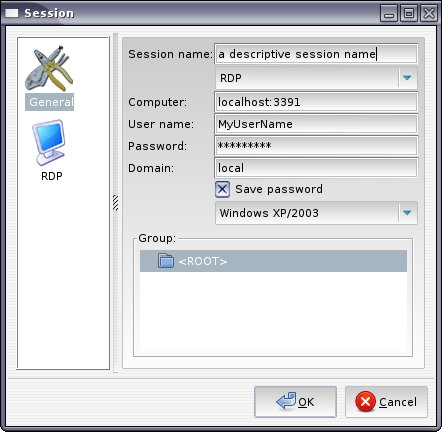
Setup your Remote Desktop Session now

I’ve been using Gnome-RDP for my RDP sessions.
Set the session up to look like this.

Once done, click Connect, and you should have your RDP session from your Linux box to your Windows 7 box secured courtesy of SSH

Setup Key pair authentication

On Debian epc, or any other Debian machine for that matter

Copy the existing public key I used for SSHing to other servers to MyWindows7Box.
This is considerably more difficult if you want to scp the key to a NATed machine on another network.
Read the likes of this if your interested.
It’s the public key, so sniffing it is not such a big deal.

scp ~/.ssh/id_rsa.pub MyUserName@MyWindows7Box:

Make sure you have the Colan at the end of the above command, else the file won’t be copied.
You may receive a prompt that the authenticity of the server you are trying to scp to can’t be established and you want to continue.
The server you are trying to connect to is added to the list of known hosts on the local machine.
Thats /home/MyUserName/.ssh/known_hosts
I didn’t get that with scp’ing to MyWindows7Box because my known_hosts already knew about MyWindows7Box from my previous OpenSSH install.

On MyWindows7Box

In the dir C:\Program Files (x86)\ICW\home\MyUserName\.ssh\
I copied the authorized_keys file to authorized_keys-OrigWithInstall (rename).
Wasn’t allowed to edit the authorized_keys file for some reason, so opened a Bash shell that comes with copSSH
and edited ~/.ssh/authorized_keys with nano. Deleting the public key.
When I tried to open this file in file explorer, it didn’t appear to have been edited.
This is because the file I thought I had edited (C:\Program Files (x86)\ICW\home\MyUserName\.ssh\authorized_keys)
was actually C:\Users\MyUserName\AppData\Local\VirtualStore\Program Files (x86)\ICW\home\MyUserName

From C:\Program Files (x86)\ICW\home\MyUserName\.ssh (or at least what I thought was there),
the public key needs to be put into the list of authorized clients that may connect to the ssh daemon.
Can do this using the Bash shell that comes with copSSH.

$ cat id_rsa.pub >> .ssh/authorized_keys

You can now delete the id_rsa.pub on the target machine.

Copied C:\Users\MyUserName\AppData\Local\VirtualStore\Program Files (x86)\ICW\home\MyUserName\authorized_keys
to C:\Program Files (x86)\ICW\home\MyUserName\.ssh\authorized_keys

With scenario two, there were a few differences.
I’m thinking some of which were probably due to a more recent version of CopSSH (4.1.0).
For starters there was no authorized_keys file anywhere, so I created one (in C:\Program Files (x86)\ICW\home\User\.ssh).
As stated above, it’s considerably more difficult to scp the id_rsa.pub from a remote pc to a NATed server.
Put id_rsa.pub in C:\Program Files (x86)\ICW\home\User\.ssh along with the authorized_keys I created, and from the bash shell
(accessible from the Copssh folder in the start menu) who’s root dir is C:\Program Files (x86)\ICW\
ran the cat command shown above.

This is probably a better way to copy the public key:

ssh-copy-id MyUserName@MyWindows7Box

Anapnea showed me this.

Could now connect via key pair auth

Made the usual changes to C:\Program Files (x86)\ICW\etc\sshd_config on MyWindows7Box

I.E. turn root access off, password auth off,
set
AllowUsers MyUserName
Although this is done by the CopSSH Control Panel in version 4.1.0
I think a service restart is required to reload changes.
When you make changes to the sshd_config, you’ll need to do them as an administrator (similar to how you would on a *nix system as root).
This site has example of setting up SSH to be even more secure by modifying the sshd_config.
It’s specific to copSSH.
There are many items on the net that show and describe the options when it comes to the sshd_config.
The available options are in the man page http://unixhelp.ed.ac.uk/CGI/man-cgi?sshd_config+5

Enjoy!

Setting up a NFS share in FreeNAS

May 16, 2010

This setup is quite different to how you would normally setup NFS on a *nix server.
I only use NFS in read only mode due to security concerns with NFS.
There are very few options you can configure and there is no point in modifying the /etc/rc.conf /etc/exports and there is no point in adding /etc/hosts.deny, /etc/hosts.allow

as they will be removed on server reboot. Hopefully these options will be added in the future or at least a work around made available.
Ideally I’d like to add the

-mapall=myuser:myusergroup

option to the /etc/exports but there is no point as it’s not persisted to hard disk.

In the Web UI under Services|NFS leave Number of servers as default of 4 and check the enable box. This options will allow 4 concurrent users to be logged into the share.

In the Web UI under Services|NFS|Shares add a share with Path of /mnt/FileServer/myNFSshare Network 192.168.0.0/24

Have to set Map all users to root to Yes. This is the same as including the no_root_squash option that can be put in the /etc/exports on a *nix box, but normally I’d choose root_squash, but this doesn’t work well for mounting at boot without the

-mapall=myuser:myusergroup

option in the /etc/exports
Setup my authorised network, All dirs and Read only to yes.

Added the following lines to /etc/rc.conf in FreeNAS as per this link

rpcbind_enable="YES"
nfs_server_enable="YES"
mountd_flags="-r"

Didn’t need the below line adding to the client machines /etc/rc.conf, although this said I did.

nfs_client_enable="YES"

After I restarted the server, the

mountd_flags="-r"

line was removed and the /mnt/.ssh dir was removed.
I no longer had key pair auth for SSH.
So had to go through the process of setting up that again.
The problem was any changes to /etc are not persisted to disk, so after a reboot it’s reset as it’s the FreeNAS ROM.
Matt Rude helped out with this

What I did was copy the /etc/rc.conf to my ~ which is /mnt/FileServer/home/myuser
Add the options again in /mnt/FileServer/home/myuser/rc.conf
Only the last option was actually not present and needed to be added.
Create a link from /etc/rc.conf to /mnt/FileServer/home/myuser/rc.conf

ln -s /mnt/FileServer/home/myuser/rc.conf /etc/rc.conf

Renamed the /etc/exports on the file server
Check the exports man page for the options…
Created an exports in /mnt/FileServer/home/myuser/ and added the following lines:

/mnt/FileServer/media -alldirs,ro -mapall=myuser:family -network 192.168.0.0 -mask 255.255.255.0
/mnt/FileServer/media -alldirs,ro -mapall=otheruser:family -network 192.168.0.0 -mask 255.255.255.0

Link the /etc/exports to /mnt/FileServer/home/myuser/exports

ln -s /mnt/FileServer/home/myuser/exports /etc/exports

None of the above links worked as they are removed on server reboot.
So basically the only options you have are on the Services|NFS web UI.

From here I created the /mnt/myfileserver/media directory on my client machines and set the myfileserver and media dir and perms to
/mnt/myfileserver was drwxrw—- myuser myusergroup
/mnt/myfileserver/media was drwxr-x— myuser users

Tried to mount the exported nfs share:

# mount myfreenasservername:/mnt/FileServer/media /mnt/myfileserver/media

This worked. So unmounted it.

# umount /mnt/myfileserver/media

Updated the /etc/fstab on the client machines so myfreenasservername:/mnt/FileServer/media would be mounted to /mnt/myfileserver/media on the client machines at boot.
add this to your client machines /etc/fstab

myfileservername:/mnt/FileServer/media /mnt/myfileserver/media nfs ro,hard,intr 0 0

Design a site like this with WordPress.com
Get started