Discussion on Class Construction Techniques

October 10, 2010

I had a discussion with some work colleges a short while ago,
around a couple of different techniques of constructing a class object.
The two approaches involved in the discussion where…

  1. Should we prefer constructing an object by providing public access to its members and initialising them external to the class, like the Builder pattern does?
  2. Or by initialising the objects members within its constructor, I.E. like the Factory Method and Abstract Factory does?

My take on this, was that it would be best object oriented practice to keep the initialisation of the objects members within the constructor if possible.
As far as I’m aware, there seems to be more support for the “keeping initialisation within the constructor”.

Some of my supporting arguments were the following

From Steve McConnell’s Code Complete

Chapter 6: Working Classes
Initialise all member data in all constructors, if possible.
Initialising all data members in all constructors is an inexpensive defensive programming practice.

Chapter 10: General Issues in Using Variables
Initialise a class’s member data in its constructor.
Just as a routine’s variables should be initialised within each routine, a class’s data should be initialised within its constructor.

GOF
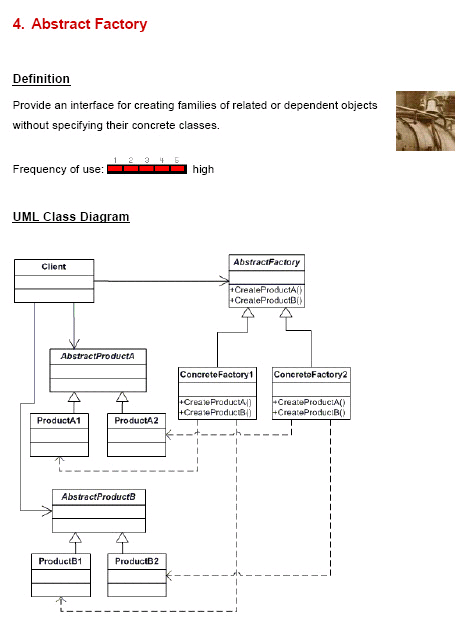
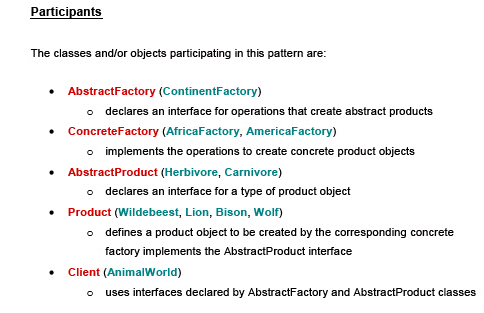
Builder pattern verses the likes of the Factory Method and Abstract Factory.
Notice the Frequency of use for the Builder verses the other two?

Examples of class’s that know how to populate themselves


You can get code examples here if you’re not familiar with the patterns.
Any feedback on what people think about the before mentioned approaches would be great.

Distributed Version Control the solution?

October 3, 2010

Due to the fact that I am starting to need a Version Control System at home for my own work and the company I currently work for during the day could potentially benefit from a real Version Control System.

I’ve set out to do an R&D spike on what is available and would best suite the above mentioned needs.
I’ve looked at a large range of products available.

At this stage, due to my research and in talking to some highly regarded technical friends and other people about their experiences with different systems, I’ve narrowed them down to the following.

Subversion, Git and Mercurial (or hg)
Subversion is server based.
Git and hg are distributed (Distributed Version Control System (DVCS)).

The two types of VCS and some of their attributes.

Centralised (or traditional)

  • Is better than no version control.
  • Serves as a single backup.
  • Server maintenance can be time consuming and costly.
  • You should be able to be confident that the server has your latest changeset.

Distributed

  • Maintenance needs are significantly reduced, due to a number of reasons. One of which is… No central server is required.
  • Each peer’s working copy of the codebase is a complete clone.
  • There is no need to be connected to a central network. Which means users can work productively, even when network connectivity is unavailable.
  • Uses a peer-to-peer approach rather than a client-server approach that the likes of Subversion use.
  • Removes the need to rely on a single machine as a single point of failure.
    Although it is often a good idea to have a server that is always online and ready to accept changesets.
    As you don’t always know whether another peer has accepted all your changes or is online.
  • Most operations are much faster than the centralised model, as no network is involved.
  • Each copy of the repository effectively acts as a remote backup. Which has multiple benefits.
  • There is no canonical code base, only working copies.
  • Operations such as commits, viewing history and rolling back are fast, because there is no need to communicate with a central server.
  • A web of trust is used to merge code from disparate repositories.
  • Branching and Merging made easier.
  • No forced structure: a central server can be implemented or peers can control the codebase.
  • Although I don’t see huge benefits for a central server in my target scenario.
  • Buddy builds. A team member can pass a change set to another member to try before committing to a central location.
    This would stop broken CI builds.
  • There is a huge amount of flexibility with your layout.
  • With a well planned layout a Distributed Version Control System can do anything a Centralised system can do, with the additional benefit of easy merges.

In weighing up the pros and cons of distributed versus the centralised model.

I think for my target requirements,
a distributed system has more to offer in the way of time savings and hardware savings.
This page has a good explanation of the differences between Centralised and Distributed.
Here is a detailed list of comparisons of some of the more common systems.

Mercurial is ticking quite a few boxes for me.
Mercurial has a VisualStudio plug-in.
There is a GUI available for windows platforms and others that integrates Mercurial directly into your explorer.
It’s free, open, and being actively maintained.
Projects using Mercurial.

Mercurial is written in Python, which is another plus for me.
Binaries are freely available for Windows, GNU/Linux, Mac OS X, OpenSolaris.
The source is also available, so you can build it for most platforms.

Plenty of documentation here, plus the book.

Installation and Configuration. Covering Windows, Debian and more.
TortoiseHg has binaries for windows and debian, but only for Squeeze onwards by the look of it.
If your running Lenny, you can just use hg. apt-get install mercurial.
When I downloaded and installed the 64 bit version of TortoiseHg (v1.1.3 hg v1.6.3), it came with 4 comprehensive documents.

  1. Mercurial: The Definitive Guide 2010-02-21 as pdf
  2. TortoiseHg v1.1.3 Documentation in both pdf and chm
  3. Mercurial Command Reference

Very nice!
Turn off the indexing service on the working copies and repositories, and exclude them from virus scans
.
Can also get TortoiseHg here (For Debian, TortoiseHq isn’t available for Lenny).
Click the Tutorial link for the Quick start guide to TortoiseHg.

Once installed, start working through the following links.
http://tortoisehg.bitbucket.org/manual/1.1/quick.html
http://mercurial.aragost.com/kick-start/basic.html

Comments or thoughts?

Metadata Exchange options for WCF

September 5, 2010

There are two options for publishing metadata from a WCF service.
By default, the services metadata is not published.
In order to make the services information about itself public, you must do either of the following.

  1. Provide the metadata over HTTP-GET automatically.
  2. Use a dedicated endpoint.

Thankfully, the ServiceHost already knows all about the services metadata.

Metadata exchange (whether using HTTP-GET or a dedicated endpoint) can be enabled Programmatically or administratively.
I find the second option by far the most popular, due to being able to modify, turn on/off after compilation, deployment.
The examples I’m going to show are how to enable the metadata exchange administratively (via the config files).

Bear in mind, that HTTP-GET is a WCF feature (may not be supported by all platforms).
Where as using a dedicated metadata exchange endpoint is an industry standard (WS-MetadataExchange).

Often the best way of explaining something is by example, so that’s what I’ll do here.
Most of the examples are shown using the HTTP transport.
Although, I also show the TCP and IPC transports using the mexTcpBinding and mexNamedPipeBinding respectively.

The solution layout looks like this

We’re pretty much just going to focus on the config files in the services project, that’s ServiceConsoleHost.

HTTP-GET examples

AppUsingHTTP-GET1.config

<?xml version="1.0" encoding="utf-8" ?>
  <configuration>
    <system.serviceModel>
      <services>
        <!--service must reference the custom behavior-->
        <service name="Tasks.Services.TaskManagerService"
            behaviorConfiguration="Tasks.Services.TaskServiceBehavior">
          <host>
            <baseAddresses>
              <!--now we browse to the baseAddress to get out metadata-->
              <!--By default, the address the clients need to use for HTTP-GET is the registered HTTP base address of the service.
              If the host is not configured with an HTTP base address, loading the service will throw an exception.
              You can also specify a different address (or just a URI appended to the HTTP base address)
              at which to publish the metadata by setting the httpGetUrl property of the serviceMetadata tag-->
              <add baseAddress = "http://localhost:8080/Tasks" />
            </baseAddresses>
          </host>
          <endpoint address ="TaskManager"
              binding="basicHttpBinding"
              contract="Tasks.Services.ITaskManagerService" />
        </service>
      </services>
      <behaviors>
        <serviceBehaviors>
          <behavior name="Tasks.Services.TaskServiceBehavior">
            <!--publishing metadata over HTTP-GET.
            explicit service behavior must be added.
            no metadata endpoint needed-->
            <serviceMetadata httpGetEnabled="true"/>
            <serviceDebug includeExceptionDetailInFaults="True" />
          </behavior>
        </serviceBehaviors>
      </behaviors>
    </system.serviceModel>
</configuration>

AppUsingHTTP-GET2.config

<?xml version="1.0" encoding="utf-8" ?>
<configuration>
  <system.serviceModel>
    <services>
      <!--service must reference the custom behavior-->
      <service name="Tasks.Services.TaskManagerService"
          behaviorConfiguration="Tasks.Services.TaskServiceBehavior">
        <host>
          <baseAddresses>
            <!--now we browse to the baseAddress to get out metadata-->
            <add baseAddress = "http://localhost:8080/Tasks" />
          </baseAddresses>
        </host>
        <endpoint address ="TaskManager"
            binding="basicHttpBinding"
            contract="Tasks.Services.ITaskManagerService" />
      </service>
    </services>
    <behaviors>
      <serviceBehaviors>
        <behavior name="Tasks.Services.TaskServiceBehavior">
          <!--publishing metadata over HTTP-GET.
          explicit service behavior must be added.
          no metadata endpoint needed-->
          <!--for the httpGetUrl, an absolute or relative address can be used
          MSDN states:
          If the value of HttpGetUrl is absolute,
            the address at which the metadata is published is the value of HttpGetUrl value plus a ?wsdl querystring.
          If the value of HttpGetUrl is relative,
            the address at which the metadata is published is the base address and the service address plus a ?wsdl querystring.-->
          <serviceMetadata httpGetEnabled="true" httpGetUrl="http://localhost:8081"/> <!--generate proxy like this C:\>SvcUtil http://localhost:8081 /out:proxy.cs-->
          <!--<serviceMetadata httpGetEnabled="true" httpGetUrl="my"/>--> <!--generate proxy like this C:\>SvcUtil http://localhost:8080/Tasks/my /out:proxy.cs-->
          <serviceDebug includeExceptionDetailInFaults="True" />
        </behavior>
      </serviceBehaviors>
    </behaviors>
  </system.serviceModel>
</configuration>

Dedicated Endpoint examples

AppUsingDedicatedEndpoint1.config

<?xml version="1.0" encoding="utf-8" ?>
<configuration>
  <system.serviceModel>
    <services>
      <!--If the service does not reference the behavior, the host will expect your service to implement IMetadataExchange.
          While this normally adds no value, it is the only way to provide for custom implementation of the IMetadataExchange.-->
      <service name="Tasks.Services.TaskManagerService"
          behaviorConfiguration="Tasks.Services.TaskServiceBehavior">
        <host>
          <baseAddresses>
            <add baseAddress = "http://localhost:8080/Tasks" />
          </baseAddresses>
        </host>
        <endpoint address ="TaskManager"
            binding="basicHttpBinding"
            contract="Tasks.Services.ITaskManagerService" />
        <!--Don't need an address in the mex endpoint as the service uses the baseAddress anyway-->
        <endpoint
            binding="mexHttpBinding"
            contract="IMetadataExchange" />
      </service>
    </services>
    <behaviors>
      <serviceBehaviors>
        <behavior name="Tasks.Services.TaskServiceBehavior">
          <!--It's not necessary to have the ServiceMetadataBehavior's HttpGetEnabled property set to true, as we now use the mex endpoint.-->
          <!--By simply adding the serviceMetadata behavior below and creating an endpoint with a mex binding and using the IMetadataExchange interface,
          WCF has the service host automatically provide the implementation of IMetadataExchange, providing the service references the behavior,
          in order to see serviceMetadata.-->
          <serviceMetadata/>
          <serviceDebug includeExceptionDetailInFaults="True" />
        </behavior>
      </serviceBehaviors>
    </behaviors>
  </system.serviceModel>
</configuration>

AppUsingDedicatedEndpoint2.config

<?xml version="1.0" encoding="utf-8" ?>
<configuration>
  <system.serviceModel>
    <services>
      <service name="Tasks.Services.TaskManagerService"
          behaviorConfiguration="Tasks.Services.TaskServiceBehavior">
        <host>
          <baseAddresses>
            <!--Don't need a baseAddress in order to get metadata, but if you want to browse the service (not the service's end point),
            you need a baseAddress.-->
          </baseAddresses>
        </host>
        <endpoint address ="http://localhost:8081/TaskManager"
            binding="basicHttpBinding"
            contract="Tasks.Services.ITaskManagerService" />
        <!--To get metadata using SvcUtil.exe:
        svcutil http://localhost:8081/mex /out:myProxy.cs
        or
        svcutil http://localhost:8081/ /out:myProxy.cs-->
        <endpoint
            address="http://localhost:8081/mex"
            binding="mexHttpBinding"
            contract="IMetadataExchange" />
      </service>
    </services>
    <behaviors>
      <serviceBehaviors>
        <behavior name="Tasks.Services.TaskServiceBehavior">
          <serviceMetadata/>
          <serviceDebug includeExceptionDetailInFaults="True" />
        </behavior>
      </serviceBehaviors>
    </behaviors>
  </system.serviceModel>
</configuration>

AppUsingDedicatedEndpoint3.config

<?xml version="1.0" encoding="utf-8" ?>
<configuration>
  <system.serviceModel>
    <services>
      <service name="Tasks.Services.TaskManagerService"
          behaviorConfiguration="Tasks.Services.TaskServiceBehavior">
        <host>
          <baseAddresses>
            <add baseAddress="net.tcp://localhost:8080/"/>
            <add baseAddress="net.pipe://localhost/"/>
            <!--The http baseAddress can reside here or be removed and added to the mex endpoint as an absolute address-->
            <add baseAddress="http://localhost:8081/"/>
          </baseAddresses>
        </host>
        <endpoint address ="TaskManager"
            binding="basicHttpBinding"
            contract="Tasks.Services.ITaskManagerService" />
        <!--To get metadata using SvcUtil.exe:
        svcutil net.tcp://localhost:8080/mex /out:myProxy.cs
        or
        svcutil net.tcp://localhost:8080/ /out:myProxy.cs-->
        <endpoint
            address="mex"
            binding="mexTcpBinding"
            contract="IMetadataExchange" />
        <!--To get metadata using SvcUtil.exe:
        svcutil net.pipe://localhost/mex /out:myProxy.cs
        or
        svcutil net.pipe://localhost/ /out:myProxy.cs-->
       <endpoint
           address="mex"
           binding="mexNamedPipeBinding"
           contract="IMetadataExchange" />
       <!--Don't need an address in the mex endpoint as the service uses the baseAddress anyway-->
       <!--To get metadata using SvcUtil.exe:
       svcutil http://localhost:8081/ /out:myProxy.cs-->
       <endpoint
           binding="mexHttpBinding"
           contract="IMetadataExchange" />
     </service>
   </services>
   <behaviors>
     <serviceBehaviors>
       <behavior name="Tasks.Services.TaskServiceBehavior">
         <serviceMetadata/>
         <serviceDebug includeExceptionDetailInFaults="True" />
       </behavior>
     </serviceBehaviors>
   </behaviors>
 </system.serviceModel>
</configuration>

In order to use any of the above shown config files,
just rename and remove any text in the App.config file name between the App and the .config.
So for example AppUsingHTTP-GET1.config would become App.config

Click on link below to download full source code.

MetadataExchangeExamples.zip

This solution was created in Visual Studio 2008.

Installation of SSH on 64bit Windows 7 to tunnel RDP

August 26, 2010

This post covers two scenarios.

Scenario one

With this setup I have a Windows 7 VM (the server) on the same network segment as the client PC which will be taking over any work I would normally do on my Windows XP box.
My existing XP box is used for any development that is easier to do on a Windows machine than a *nix machine.
Mostly .Net development.

Scenario two

Includes tunneling to a NATed Windows 7 machine on a different network

Access to my existing Windows XP box:
Is by way of RDP session tunneled through SSH.
SSH link being established from one of my Debian eeepc’s (The computer I use most of the time) to the existing Windows XP machine.

Used OpenSSH for the existing Windows XP machine.
http://sshwindows.sourceforge.net/ which is no longer supported.
Couldn’t get key pair authentication working though when I set it up.

I thought I’d give OpenSSH a try on the Windows 7 machine and see how far we could get.
Once followed all directions in the ssh readme.txt and comparing with the setup on my existing Windows XP box.
The OpenSSH Server service wouldn’t start.
Followed directions here.
Tried everything I could think of and still couldn’t get the service to start.

So going on some others advise, decided to give copSSH a try, as it is an implementation of OpenSSH, but currently being maintained.
Thanks to Tevfik Karagülle.
This worked out well and was a very easy setup.
The version of CopSSH used for this was 4.1.0 from here.

Initial sites used for copSSH install

http://www.sevenforums.com/customization/19864-ssh-windows-7-a.html
http://www.itefix.no/i2/copssh

Installation of copSSH

When you add a user to the CopSSH Control Panel, make sure you run the CopSSH Control Panel as an administrator (probably best to runas administrator for any actions),
else the user appears to be added, but when you try to SSH to the server, you get something along the lines of…
Unable to authenticate
Failed password for invalid user
See http://www.itefix.no/i2/node/12494#comments

Setup for the tunnel

Create a file in your ~ dir. TunnelToWin7Box for example, and put the following command in it.

ssh -v -f -L 3391:localhost:3389 -N MyUserName@MyWindows7Box

Turn the executable bit on.
Make sure owner and group is correct.

chmod 750 TunnelToWin7Box
chown MyUserName:MyGroupName TunnelToWin7Box

Add a command drawer to the task bar.
Add a Custom Application Launcher to the drawer that points to the TunnelToWin7Box file.
You can even add an image that makes sense to the drawer.
Mine looks like this, with 3 command launchers…

The first port there can be any port not currently in use.
The second port is the port that RDP listens on in Windows.
You also need to add an inbound rule to open port 22 or a port of your choosing on the Windows Firewall.
Also close the Remote Desktop port TCP 3389 on the Windows box.
If the server you are trying to tunnel to is behind a NAT and not on your network, I.E. you are trying to tunnel to your work machine from home for example, There is a little more involved in setting up the firewall rule and a change to the sshd_config.
You’ll need to add an inbound rule. I called it SSH. In the Programs and Services tab… selected “All programs that meet the specified conditions”.
For the Service Settings, only one that would work was “Apply to services only”. I thought it would be best to select only the ssh service, but this wouldn’t allow SSH in.
General tab just had Enabled on. Computers tab was untouched. Users and Scope was untouched. Advanced tab only needed to select Private check box.
“Protocols and ports” tab Protocol type is TCP, Local port is port 22, Remote port is All Ports.
Edit the C:\Program Files (x86)\ICW\etc\sshd_config as an administrator.
Add the line… GatewayPorts yes
Or uncomment it and set to yes rather than no if it already exists.

Command I used for the NATed scenario

ssh -v -f -L 3392:localhost:3389 -N User@YourWorksGateway.com -p 2222

The port is the port that your network admin has setup for you to forward to the machine you want to tunnel to.

When I run the command to try establish the tunnel I was getting an error message.
I made a post here.
So I un-installed copSSH and re-installed a few times trying different things.
Before last un-install, I removed the users that copSSH adds, because it doesn’t remove them on un-install,
and deleted the OpenSSHServer service using the “sc delete OpenSSHServer” command in cmd.exe shell running as administrator.
Installed again using all defaults.
It appears as even though SSH gives the message that it won’t tunnel, if you then try and open the port forwarded RDP session, it works.
In saying that, sometimes it didn’t work.
This happens if you click the command launcher more than once and you end up with more than one tunnel established.
In which case you just kill one of them and your away laughing.

Setup your Remote Desktop Session now

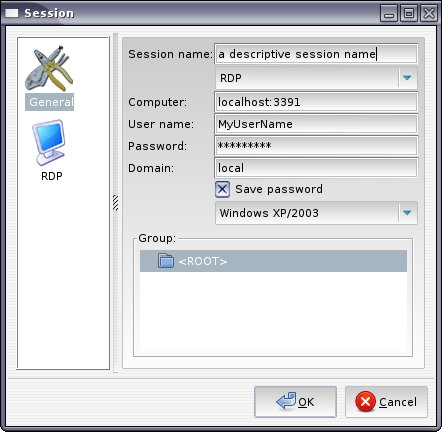
I’ve been using Gnome-RDP for my RDP sessions.
Set the session up to look like this.

Once done, click Connect, and you should have your RDP session from your Linux box to your Windows 7 box secured courtesy of SSH

Setup Key pair authentication

On Debian epc, or any other Debian machine for that matter

Copy the existing public key I used for SSHing to other servers to MyWindows7Box.
This is considerably more difficult if you want to scp the key to a NATed machine on another network.
Read the likes of this if your interested.
It’s the public key, so sniffing it is not such a big deal.

scp ~/.ssh/id_rsa.pub MyUserName@MyWindows7Box:

Make sure you have the Colan at the end of the above command, else the file won’t be copied.
You may receive a prompt that the authenticity of the server you are trying to scp to can’t be established and you want to continue.
The server you are trying to connect to is added to the list of known hosts on the local machine.
Thats /home/MyUserName/.ssh/known_hosts
I didn’t get that with scp’ing to MyWindows7Box because my known_hosts already knew about MyWindows7Box from my previous OpenSSH install.

On MyWindows7Box

In the dir C:\Program Files (x86)\ICW\home\MyUserName\.ssh\
I copied the authorized_keys file to authorized_keys-OrigWithInstall (rename).
Wasn’t allowed to edit the authorized_keys file for some reason, so opened a Bash shell that comes with copSSH
and edited ~/.ssh/authorized_keys with nano. Deleting the public key.
When I tried to open this file in file explorer, it didn’t appear to have been edited.
This is because the file I thought I had edited (C:\Program Files (x86)\ICW\home\MyUserName\.ssh\authorized_keys)
was actually C:\Users\MyUserName\AppData\Local\VirtualStore\Program Files (x86)\ICW\home\MyUserName

From C:\Program Files (x86)\ICW\home\MyUserName\.ssh (or at least what I thought was there),
the public key needs to be put into the list of authorized clients that may connect to the ssh daemon.
Can do this using the Bash shell that comes with copSSH.

$ cat id_rsa.pub >> .ssh/authorized_keys

You can now delete the id_rsa.pub on the target machine.

Copied C:\Users\MyUserName\AppData\Local\VirtualStore\Program Files (x86)\ICW\home\MyUserName\authorized_keys
to C:\Program Files (x86)\ICW\home\MyUserName\.ssh\authorized_keys

With scenario two, there were a few differences.
I’m thinking some of which were probably due to a more recent version of CopSSH (4.1.0).
For starters there was no authorized_keys file anywhere, so I created one (in C:\Program Files (x86)\ICW\home\User\.ssh).
As stated above, it’s considerably more difficult to scp the id_rsa.pub from a remote pc to a NATed server.
Put id_rsa.pub in C:\Program Files (x86)\ICW\home\User\.ssh along with the authorized_keys I created, and from the bash shell
(accessible from the Copssh folder in the start menu) who’s root dir is C:\Program Files (x86)\ICW\
ran the cat command shown above.

This is probably a better way to copy the public key:

ssh-copy-id MyUserName@MyWindows7Box

Anapnea showed me this.

Could now connect via key pair auth

Made the usual changes to C:\Program Files (x86)\ICW\etc\sshd_config on MyWindows7Box

I.E. turn root access off, password auth off,
set
AllowUsers MyUserName
Although this is done by the CopSSH Control Panel in version 4.1.0
I think a service restart is required to reload changes.
When you make changes to the sshd_config, you’ll need to do them as an administrator (similar to how you would on a *nix system as root).
This site has example of setting up SSH to be even more secure by modifying the sshd_config.
It’s specific to copSSH.
There are many items on the net that show and describe the options when it comes to the sshd_config.
The available options are in the man page http://unixhelp.ed.ac.uk/CGI/man-cgi?sshd_config+5

Enjoy!

Message Inspection in WCF

June 14, 2010

Message Inspectors can be a very usefull tool in diagnosing problems between WCF services and clients.
The messages that are transferred between clients/services can be intercepted and operations performed on them.
We’ve used this at work in conjunction with a tool called SaopUI to capture the SOAP messages and fire them at our service.
This can be usefull for load testing, concurrency testing scenarios amongst others.

What I’ll be demonstrating

Sending a message from our client to the service and receiving a reply.
Capturing the SOAP packets in their raw form on the service, before they are processed by the service operations.

The parts we’ll be going over from my example solution

A service (CoffeeMakingservice)
A client (CoffeeAddict)
The message inspecting components

Service implementation

using System.Threading;

namespace CoffeeAddiction
{
    public class CoffeeShop : ICoffeeShop
    {
        public Coffee MakeCoffee(CoffeeType coffeeType)
        {
            return RunBarrister(coffeeType);
        }

        private Coffee RunBarrister(CoffeeType coffeeType)
        {
            Thread.Sleep(5000);
            return new Coffee() { TypeOfCoffee = coffeeType };
        }
    }
}

Client

using System;
using CoffeeAddict.ServieProxy;

namespace CoffeeAddict
{
    class Program
    {
        static void Main(string[] args)
        {
            Console.WriteLine("Hi there. What type of Coffee would you like today?");

            ConsoleKey cK;

            do
            {
                DisplayOptionsToAddict();
                ProcessOrder();
                Console.WriteLine("Hit the Escape key to exit the shop. Hit any other key to order more joe.");
                Console.WriteLine();
                cK = Console.ReadKey(true).Key;
            }
            while (cK != ConsoleKey.Escape);
        }

        private static void ProcessOrder()
        {
            Coffee yourCoffee;
            char selectedKey;
            int option;
            bool selectionRequested = false;
            do
            {
                if (selectionRequested)
                    Console.WriteLine("You have entered an invalid option. Please try again.");

                selectedKey = Console.ReadKey(true).KeyChar;
                int.TryParse(selectedKey.ToString(), out option);
                if (!selectionRequested) selectionRequested = true;

            }
            while (option < 1 || option > Enum.GetValues(typeof(CoffeeType)).Length);

            Console.WriteLine("Thank you. We will now process your order.");

            using (CoffeeShopClient coffeeShopClient = new CoffeeShopClient())
                yourCoffee = coffeeShopClient.MakeCoffee((CoffeeType)option);

            Console.WriteLine();
            Console.WriteLine("Your {0} is served!", yourCoffee.TypeOfCoffee);
        }

        private static void DisplayOptionsToAddict()
        {
            Console.WriteLine("Please select the associated number");
            Console.WriteLine();

            foreach (string coffeeType in Enum.GetNames(typeof(CoffeeType)))
            {
                Console.WriteLine("{0} : {1}",
                    Convert.ToInt32(Enum.Parse(typeof(CoffeeType), coffeeType)),
                    coffeeType
                    );
            }
            Console.WriteLine();
        }
    }
}

I’ve hosted these projects in console apps for simplicities sake.
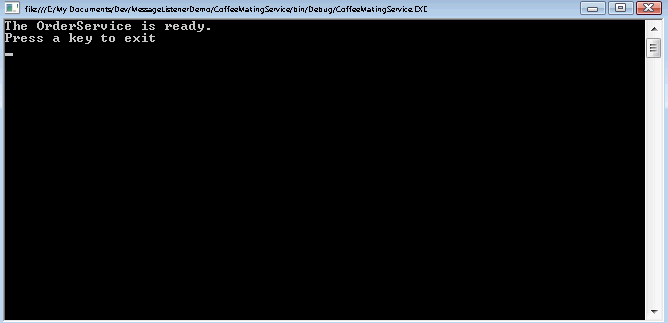
Run the service.

Now generate our ServiceProxy.
You would have to do this before you write the client.

Now we’re ready to start the client.
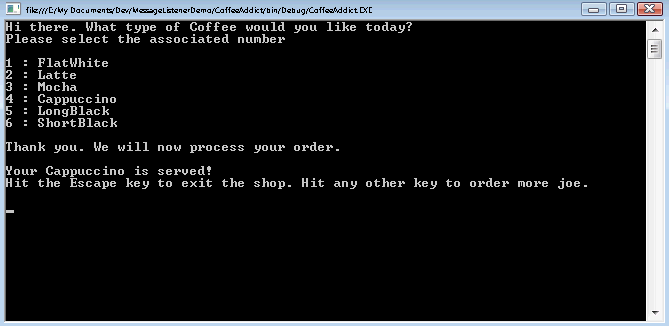
The client will give a welcome and display a list of options to choose from.
Once the user has made his/her choice, a proxy of the service is created and the users choice is sent to the service for coffee production to begin.
Once the coffee is made, it’s returned to the client.
The client can then decide whether he/she wants another coffee.

——

Now for the message inspection part

As we are going to be inspecting the messages on the service side, we implement the IDispatchMessageInspector.
If we were inspecting the messages on the client side, we would implement the IClientMessageInspector.
As you can see, the methods on these interfaces take a Message parameter.
The Message contains the serialized parameters, operation name, and other information about the message being inspected.
The body of the message is implemented as a streamed object, so we’ve given it some special attention.
Also the body of the message can be processed only once during the lifetime of the Message object.
Any further attempts to retrieve the body, will result in an InvalidOperationException.
The solution to this is to create a copy, by using the CreateBufferedCopy method of the message.
This allows us to create a copy of the original message by using the CreateMessage method on the new MessageBuffer we now have.
As you can see, we write the message out to a time stamped file.

using System;
using System.IO;
using System.ServiceModel;
using System.ServiceModel.Dispatcher;
using System.ServiceModel.Channels;
using System.Xml;

namespace MessageListener.Instrumentation
{
    public class MessageInspector : IDispatchMessageInspector
    {
        const string LogDir = @"C:\Logs\CoffeeMakingService\";

        private Message TraceMessage(MessageBuffer buffer)
        {
            //Must use a buffer rather than the origonal message, because the Message's body can be processed only once.
            Message msg = buffer.CreateMessage();

            //Setup StringWriter to use as input for our StreamWriter
            //This is needed in order to capture the body of the message, because the body is streamed.
            StringWriter stringWriter = new StringWriter();
            XmlTextWriter xmlTextWriter = new XmlTextWriter(stringWriter);
            msg.WriteMessage(xmlTextWriter);
            xmlTextWriter.Flush();
            xmlTextWriter.Close();

            //Setup filename to write to
            if (!Directory.Exists(LogDir))
                Directory.CreateDirectory(LogDir);

            DateTime now = DateTime.Now;
            string datePart = now.Year.ToString() + '-' + now.Month.ToString() + '-' + now.Day.ToString() + '-' + now.Hour + '-' + now.Minute + '-' + now.Second;
            string fileName = LogDir + "\\" + datePart + '-' + "SoapEnv.xml";

            //Write to file
            using (StreamWriter sw = new StreamWriter(fileName))
                sw.Write(stringWriter.ToString());

            //Return copy of origonal message with unalterd State
            return buffer.CreateMessage();
        }

        //BeforeSendReply is called after the response has been constructed by the service operation
        public void BeforeSendReply(ref Message reply, object correlationState)
        {
            //Uncomment the below line if you need to capture the reply message
            //reply = TraceMessage(reply.CreateBufferedCopy(int.MaxValue));
        }

        //The AfterReceiveRequest method is fired after the message has been received but prior to invoking the service operation
        public object AfterReceiveRequest(ref Message request, IClientChannel channel, InstanceContext instanceContext)
        {
            request = TraceMessage(request.CreateBufferedCopy(int.MaxValue));
            return null;
        }
    }
}

Now we have to add the message inspector to the services channel stack.
First we create the behavior.
Now the only methods we are likely to want to use are the ApplyClientBehavior and/or ApplyDispatchBehavior.
ApplyDispatchBehavior provides the customization we will need to add our new inspector to the collection of message inspectors on the dispatch runtime of our endpoint dispatcher on the service side.

IEndpointBehavior implementation

using System.ServiceModel.Channels;
using System.ServiceModel.Description;
using System.ServiceModel.Dispatcher;

namespace MessageListener.Instrumentation
{
    public class LoggingEndpointBehavior : IEndpointBehavior
    {
        public void AddBindingParameters(ServiceEndpoint endpoint, BindingParameterCollection bindingParameters)
        {}

        public void ApplyClientBehavior(ServiceEndpoint endpoint, ClientRuntime clientRuntime)
        {}

        public void ApplyDispatchBehavior(ServiceEndpoint endpoint, EndpointDispatcher endpointDispatcher)
        {
            MessageInspector inspector = new MessageInspector();
            endpointDispatcher.DispatchRuntime.MessageInspectors.Add(inspector);
        }

        public void Validate(ServiceEndpoint endpoint)
        {}
    }
}

Now we need to add our behavior to a behavior extension.
The BehaviorType property and the CreateBehavior method must be overridden.
By doing this we provide an instance of our behavior when the framework sees that we have added directions to our extension in the configuration.

Sub classing BehaviorExtensionElement

using System;
using System.ServiceModel.Configuration;

namespace MessageListener.Instrumentation
{
    public class LoggingBehaviorExtensionElement : BehaviorExtensionElement
    {
        public override Type BehaviorType
        {
            get
            {
                return typeof(LoggingEndpointBehavior);
            }
        }

        protected override object CreateBehavior()
        {
            return new LoggingEndpointBehavior();
        }
    }
}

After the behavior is added to an extension, it can be added to the channel stack.
We tell the framework where to look for our extension, by adding directions to our configuration file.
We now add a reference to our extension (messageInspector) to the endpoint behavior.

Important parts of the services config file.
I’ve left some parts out of this example, to allow us to focus on the listening functionality.

  <system.serviceModel>


Now when we run the service and the client, we can enjoy the fruits of our labor.

Click on link below to download full source code.

You can grap the MessageListenerDemo code here.

You’ll need Visual Studio 2010 unless you want to create new projects using the source files.

public class WSDualHttpBinding : Binding,...
{
   public Uri ClientBaseAddress
   {get;set;}
   //More members
}

Duplex communication and callbacks in WCF

May 23, 2010

I was reading in the book Enterprise Integration Patterns that my dev manager bought for the team,
on the Message Endpoint pattern on the way home from work a few days ago.

“A Message Endpoint can be used to send messages or receive them, but one instance does not do both”
From my experience, this wasn’t necessarily true.
So I decided to confirm my suspicion.
The following is a mix of what I read and tested out.

Callback Operations

Not all bindings support callback operations. Only bidirectional-capable bindings (TCP, IPC) support callback operations.
For example, because of its connectionless nature, HTTP cannot be used for callbacks,
and therefore you cannot use callbacks over the BasicHttpBinding or the WSHttpBinding.
The MSMQ bindings also don’t support duplex communication.

To support callbacks over HTTP, WCF offers the WSDualHttpBinding, which actually sets up two WS channels:
one for the calls from the client to the service and one for the calls from the service to the client.

Two way communication can be set up for MSMQ bindings by using two one way contracts.

The CompositeDuplexBindingElement is commonly used with transports, such as HTTP, that do not allow duplex communications natively.
TCP, IPC by contrast, does allow duplex communications natively and so does not require the use of this binding element
for the service to send messages back to a client.

Callbacks, Ports, and Channels

When you use either the NetTcpBinding, NetPeerTcpBinding or the NetNamedPipebinding, the callbacks enter the client on the outgoing channel the binding maintains to the service.
There is no need to open a new port or a pipe for the callbacks.
When you use the WSDualHttpBinding, WCF maintains a separate, dedicated HTTP channel for the callbacks,
because HTTP itself is a unidirectional protocol.
WCF auto-generates a ClientBaseAddress if one is not explicitly set by the user.
WCF selects port 80 by default for that callback channel,
and it passes the service a callback address that uses HTTP, the client machine name, and port 80.
While using port 80 makes sense for Internet-based services, it is of little value to intranet-based services.
In addition, if the client machine happens to also have IIS 5 or 6 running, port 80 will already be reserved,
and the client will not be able to host the callback endpoint.
(IIS7, by default, will allow sharing the port.)

Assigning a callback address

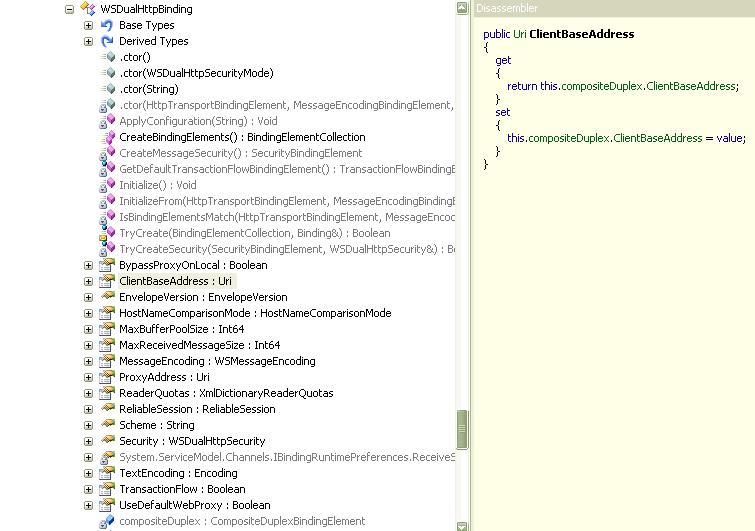
Fortunately, the WSDualHttpBinding offers the ClientBaseAddress property,
which you can use to configure a different callback address on the client.

public class WSDualHttpBinding : Binding,...
{
   public Uri ClientBaseAddress
   {get;set;}
   //More members
}

and configuring the clients base address in the clients config file.

<system.serviceModel>
   <client>
      <endpoint
         address  = "http://localhost:8008/MyService"
         binding  = "wsDualHttpBinding"
         bindingConfiguration = "ClientCallback"
         contract = "IMyContract"
      />
   </client>
   <bindings>
      <wsDualHttpBinding>
         <binding name = "ClientCallback"
            clientBaseAddress = "http://localhost:8009/"
         />
      </wsDualHttpBinding>
   </bindings>
</system.serviceModel>

MSDN CompositeDuplexBindingElement states
The client must expose an address at which the service can contact it to establish a connection from the service to the client.
This client address is provided by the ClientBaseAddress property.

WSDualHttpBinding.ClientBaseAddress uses the CompositeDuplexBindingElement’s ClientBaseAddress property.

x

x

As Juval Lowey states
The problem with using a config file to set the callback base address is that it precludes running multiple instances of the client on the same machine, which is something you are likely to do in any decent testing scenario. However, since the callback port need not be known to the service in advance, in actuality any available port will do. It is therefore better to set the client base address programmatically to any available port.
This can be automated by using one of the SetClientBaseAddress extension methods on the WsDualProxyHelper class.

public static class WsDualProxyHelper
{
   public static void SetClientBaseAddress<T>(this DuplexClientBase<T> proxy,
      int port) where T : class
   {
      WSDualHttpBinding binding = proxy.Endpoint.Binding as WSDualHttpBinding;
      Debug.Assert(binding != null);
      binding.ClientBaseAddress = new Uri("http://localhost:"+ port + "/");
   }
   public static void SetClientBaseAddress<T>(this DuplexClientBase<T> proxy)
      where T : class
   {
      lock(typeof(WsDualProxyHelper))
      {
         int portNumber = FindPort( );
         SetClientBaseAddress(proxy,portNumber);
         proxy.Open( );
      }
   }
   internal static int FindPort( )
   {
      IPEndPoint endPoint = new IPEndPoint(IPAddress.Any,0);
      using(Socket socket = new Socket(AddressFamily.InterNetwork, SocketType.Stream, ProtocolType.Tcp))
      {
         socket.Bind(endPoint);
         IPEndPoint local = (IPEndPoint)socket.LocalEndPoint;
         return local.Port;
      }
   }
}

There’s also a good description of how to implement callbacks in WCF in the MSDN Duplex Services item.

I’ve also implemented something similar in a project I worked on last year.
It used a singleton service, and has about 30 clients hitting it at any one point in time.

Setting up a NFS share in FreeNAS

May 16, 2010

This setup is quite different to how you would normally setup NFS on a *nix server.
I only use NFS in read only mode due to security concerns with NFS.
There are very few options you can configure and there is no point in modifying the /etc/rc.conf /etc/exports and there is no point in adding /etc/hosts.deny, /etc/hosts.allow

as they will be removed on server reboot. Hopefully these options will be added in the future or at least a work around made available.
Ideally I’d like to add the

-mapall=myuser:myusergroup

option to the /etc/exports but there is no point as it’s not persisted to hard disk.

In the Web UI under Services|NFS leave Number of servers as default of 4 and check the enable box. This options will allow 4 concurrent users to be logged into the share.

In the Web UI under Services|NFS|Shares add a share with Path of /mnt/FileServer/myNFSshare Network 192.168.0.0/24

Have to set Map all users to root to Yes. This is the same as including the no_root_squash option that can be put in the /etc/exports on a *nix box, but normally I’d choose root_squash, but this doesn’t work well for mounting at boot without the

-mapall=myuser:myusergroup

option in the /etc/exports
Setup my authorised network, All dirs and Read only to yes.

Added the following lines to /etc/rc.conf in FreeNAS as per this link

rpcbind_enable="YES"
nfs_server_enable="YES"
mountd_flags="-r"

Didn’t need the below line adding to the client machines /etc/rc.conf, although this said I did.

nfs_client_enable="YES"

After I restarted the server, the

mountd_flags="-r"

line was removed and the /mnt/.ssh dir was removed.
I no longer had key pair auth for SSH.
So had to go through the process of setting up that again.
The problem was any changes to /etc are not persisted to disk, so after a reboot it’s reset as it’s the FreeNAS ROM.
Matt Rude helped out with this

What I did was copy the /etc/rc.conf to my ~ which is /mnt/FileServer/home/myuser
Add the options again in /mnt/FileServer/home/myuser/rc.conf
Only the last option was actually not present and needed to be added.
Create a link from /etc/rc.conf to /mnt/FileServer/home/myuser/rc.conf

ln -s /mnt/FileServer/home/myuser/rc.conf /etc/rc.conf

Renamed the /etc/exports on the file server
Check the exports man page for the options…
Created an exports in /mnt/FileServer/home/myuser/ and added the following lines:

/mnt/FileServer/media -alldirs,ro -mapall=myuser:family -network 192.168.0.0 -mask 255.255.255.0
/mnt/FileServer/media -alldirs,ro -mapall=otheruser:family -network 192.168.0.0 -mask 255.255.255.0

Link the /etc/exports to /mnt/FileServer/home/myuser/exports

ln -s /mnt/FileServer/home/myuser/exports /etc/exports

None of the above links worked as they are removed on server reboot.
So basically the only options you have are on the Services|NFS web UI.

From here I created the /mnt/myfileserver/media directory on my client machines and set the myfileserver and media dir and perms to
/mnt/myfileserver was drwxrw—- myuser myusergroup
/mnt/myfileserver/media was drwxr-x— myuser users

Tried to mount the exported nfs share:

# mount myfreenasservername:/mnt/FileServer/media /mnt/myfileserver/media

This worked. So unmounted it.

# umount /mnt/myfileserver/media

Updated the /etc/fstab on the client machines so myfreenasservername:/mnt/FileServer/media would be mounted to /mnt/myfileserver/media on the client machines at boot.
add this to your client machines /etc/fstab

myfileservername:/mnt/FileServer/media /mnt/myfileserver/media nfs ro,hard,intr 0 0

Logical vs Physical Addresses in WCF

April 18, 2010


In this example, I share a listenUri between two endpoints.

Synopsis:

We have one service implementation that has two service contracts.
Each service contract will have it’s own endpoint.
Each endpoint will share a listenUri.

We’ve also setup an endpoint for our metadata exchange.
I’ve done all of this imperatively.

Service code

using System.ServiceModel;
using System.ServiceModel.Description;

namespace Service
{
	[ServiceContract]
	public interface IGetHeaders
	{
		[OperationContract]
		string GetHeaders();
	}

	[ServiceContract]
	public interface ICalculate
	{
		[OperationContract]
		double Sum(double[] values);
	}

	public class HeaderService : IGetHeaders, ICalculate
	{
		public string GetHeaders()
		{
			return OperationContext.Current.RequestContext.RequestMessage.Headers.Action;
		}

		public double Sum(double[] values)
		{
			double result = 0.0;
			foreach (double value in values)
				result += value;
			return result;
		}
	}

	public class Program
	{
		public static void Main()
		{
			Uri baseAddress = new Uri("net.tcp://localhost:8241/Service");
			Uri listenUri = new Uri("net.tcp://localhost:8241/MyListenUri");

			ServiceHost serviceHost	= new ServiceHost(typeof(HeaderService), new Uri[] {baseAddress});
			NetTcpBinding netTcpBinding = new NetTcpBinding();

			serviceHost.AddServiceEndpoint(typeof(IGetHeaders),
				netTcpBinding, "/GetHeaders", listenUri);
			serviceHost.AddServiceEndpoint(typeof(ICalculate),
				netTcpBinding, "/Calculate", listenUri);

			ExposeMetadata(serviceHost);

				serviceHost.Open();
				Console.WriteLine("Host	running...");
			Console.WriteLine("Service {0} hosted and {1} to receive requests", serviceHost.Description.Name, serviceHost.State);
			Console.WriteLine("press Enter to terminate");
				Console.ReadLine();
				serviceHost.Close();
		}

		private static	void ExposeMetadata(ServiceHost serviceHost)
		{
			//Check	to see if the service host already has a ServiceMetadataBehavior
			ServiceMetadataBehavior	serviceMetadataBehavior	= serviceHost.Description.Behaviors.Find<ServiceMetadataBehavior>();
			//If not, add one
			if(serviceMetadataBehavior == null)
				serviceMetadataBehavior	= new ServiceMetadataBehavior();
			serviceMetadataBehavior.HttpGetEnabled = true;
			Uri mexUri = new Uri("http://localhost:8242/Service/Mex");
			serviceMetadataBehavior.HttpGetUrl = mexUri;
			serviceMetadataBehavior.MetadataExporter.PolicyVersion = PolicyVersion.Policy15;
			serviceHost.Description.Behaviors.Add(serviceMetadataBehavior);
			//Add MEX endpoint
			serviceHost.AddServiceEndpoint(ServiceMetadataBehavior.MexContractName,	MetadataExchangeBindings.CreateMexHttpBinding(), mexUri);
		}
	}
}

Client code

using System;
using System.ServiceModel;
using System.ServiceModel.Description;

namespace Client
{
	 class Program
	 {
		  static void Main(string[] args)
		  {
			NetTcpBinding netTcpBinding = new NetTcpBinding();
			Uri myListenUri = new Uri("net.tcp://localhost:8241/MyListenUri");

			ServiceProxy.GetHeadersClient getHeadersProxy =
				new ServiceProxy.GetHeadersClient(netTcpBinding, new EndpointAddress("net.tcp://localhost:8241/Service/GetHeaders"));
			getHeadersProxy.Endpoint.Behaviors.Add(new ClientViaBehavior(myListenUri));

			ServiceProxy.CalculateClient calculateProxy =
				new ServiceProxy.CalculateClient(netTcpBinding, new EndpointAddress("net.tcp://localhost:8241/Service/Calculate"));
			calculateProxy.Endpoint.Behaviors.Add(new ClientViaBehavior(myListenUri));

			Console.WriteLine("Press Enter to exercise GetHeaders");
			Console.ReadLine();
			Console.WriteLine("And the header is: {0}{1}", getHeadersProxy.GetHeaders(), Environment.NewLine);
			Console.WriteLine("Press Enter to exercise Sum");
			Console.ReadLine();
			Console.WriteLine("And the sum is: {0}{1}", calculateProxy.Sum(new double[] { 1.4, 3.5, 7.8 }), Environment.NewLine);
			Console.WriteLine("press Enter to terminate");
			Console.ReadLine();
		  }
	 }
}

Click on link below to download full source code.

public class Program
{
public    static void    Main()
{
Uri baseAddress =    new Uri(“net.tcp://localhost:8241/Service”);
Uri listenUri = new Uri(“net.tcp://localhost:8241/MyListenUri”);

ServiceHost    serviceHost    = new    ServiceHost(typeof(HeaderService), new    Uri[]    {baseAddress});
NetTcpBinding netTcpBinding =    new NetTcpBinding();

serviceHost.AddServiceEndpoint(typeof(IGetHeaders),
netTcpBinding,    “/GetHeaders”,    listenUri);
serviceHost.AddServiceEndpoint(typeof(ICalculate),
netTcpBinding,    “/Calculate”, listenUri);

ExposeMetadata(serviceHost);

serviceHost.Open();
Console.WriteLine(“Host    running…”);
Console.WriteLine(“Service    {0} hosted and    {1} to receive    requests”, serviceHost.Description.Name, serviceHost.State);
Console.WriteLine(“press Enter to terminate”);
Console.ReadLine();
serviceHost.Close();
}

private static    void ExposeMetadata(ServiceHost serviceHost)
{
//    Check    to    see if the service host    already has    a ServiceMetadataBehavior
ServiceMetadataBehavior    serviceMetadataBehavior    = serviceHost.Description.Behaviors.Find<ServiceMetadataBehavior>();
//    If    not, add    one
if    (serviceMetadataBehavior == null)
serviceMetadataBehavior    = new    ServiceMetadataBehavior();
serviceMetadataBehavior.HttpGetEnabled    = true;
Uri mexUri = new Uri(“http://localhost:8242/Service/Mex&#8221;);
serviceMetadataBehavior.HttpGetUrl = mexUri;
serviceMetadataBehavior.MetadataExporter.PolicyVersion =    PolicyVersion.Policy15;
serviceHost.Description.Behaviors.Add(serviceMetadataBehavior);
//    Add MEX endpoint
serviceHost.AddServiceEndpoint(ServiceMetadataBehavior.MexContractName,    MetadataExchangeBindings.CreateMexHttpBinding(), mexUri);
}
}

SingleServiceListenUriTwoEndpoints.zip – 20.98 KB

Once you’ve built the solution, navigate to
Service\bin\Debug\Service.exe and run it.
You should see output like the following.

Now run the Client project in the debugger.
You should see output like the following, once you’ve hit Enter twice.

This is also a good read on the differences between
Logical vs. Physical Addresses.

Exam Prep on Bindings according to Exam Tip in MCTS Training Kit

April 11, 2010

According to the Exam Tip on pg 236 of the MCTS Self-Paced Training Kit (Exam 70-503)
The type of questions that may arise around bindings are:

1. The difference between duplex and nonduplex.
2. The support for different authentication types.
3. The ability to provide reliable message delivery.

My research:

1. Bindings that support duplex communication natively:

Tcp bindings
Named pipe bindings
WSDualHttpBinding

2. Support for different Authentication types:

The Security member on the bindings provide access to the SecurityBindingElement subclass’s.
I haven’t seen a binding without authentication support.
Example of authentication members hierarchy on BasicHttpBinding, WSHttpBinding.

BasicHttpBinding
+ Security – returns BasicHttpSecurity
——+ Message – returns BasicHttpMessageSecurity
———+ ClientCredentialType – returns BasicHttpMessageCredentialType
————+ UserName or
————+ Certificate
——+ Mode – returns BasicHttpSecurityMode
———+ None or
———+ Transport or
———+ Message or
———+ TransportWithMessageCredential or
———+ TransportCredentialOnly
——+ Transport – returns HttpTransportSecurity
———+ ClientCredentialType – returns HttpClientCredentialType
————+ None or
————+ Basic or
————+ Digest or
————+ Ntlm or
————+ Windows or
————+ Certificate
———+ ProxyCredentialType – returns HttpProxyCredentialType
————+ None or
————+ Basic or
————+ Digest or
————+ Ntlm or
————+ Windows
———+ Realm

WSHttpBinding
+ Security – returns WSHttpSecurity
——+ Message – returns NonDualMessageSecurityOverHttp
———+ ClientCredentialType – returns MessageCredentialType
————+ None or
————+ Windows or
————+ UserName or
————+ Certificate or
————+ IssuedToken
———+ EstablishSecurityContext – returns bool
———+ NegotiateServiceCredential – returns bool
——+ Mode – returns SecurityMode
———+ None or
———+ Transport or
———+ Message or
———+ TransportWithMessageCredential
——+ Transport – returns HttpTransportSecurity
———+ ClientCredentialType – returns HttpClientCredentialType
————+ None or
————+ Basic or
————+ Digest or
————+ Ntlm or
————+ Windows or
————+ Certificate
———+ ProxyCredentialType – returns HttpProxyCredentialType
————+ None or
————+ Basic or
————+ Digest or
————+ Ntlm or
————+ Windows
———+ Realm

3. Ability to provide reliable message delivery:

Reliable message delivery is provided by way of the ReliableSessionBindingElement.
The bindings that have this binding element provide access to it via the ReliableSession property on the binding.
Which allows the developer/administrator to turn on/off WS-ReliableMessaging.
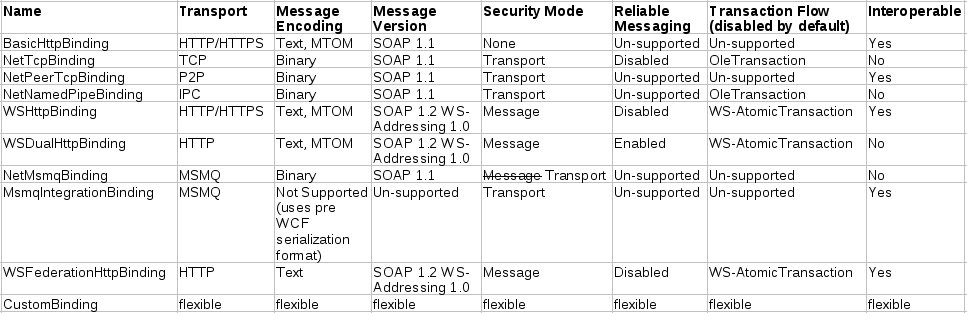
The binding matrix shows which bindings support reliable messaging.
Supported bindings are:
WsHttpBinding (off by default),
WsDualHttpBinding (on by default),
NetTcpBinding (off by default).

A few steps to secure a FreeNAS server

April 6, 2010

Change the web gui admin user name in System|General under WebGUI->Username.

Change the default password in System|General|Password.

Setup key pair authentication for SSH and secure FreeNAS.

Clean out any existing files in ~/.ssh on your client machine.
At command prompt on client:

$ ssh-keygen -t rsa

agree to location that ssh-keygen wants to store the keys… ~/.ssh
Enter a pass phrase twice to confirm. This is the pass phrase for the public key.
Keys are now in ~/.ssh

I created the home directory in /mnt/FileServer and chown’d it to root:wheel.

mkdir /mnt/FileServer/home
chown root:wheel /mnt/FileServer/home

Created the myuser directory in /mnt/FileServer/home.
In the web UI Access|Users|Edit for my user. I set the Home directory to /mnt/FileServer/home/myuser/
The reason we can’t use the default ~ directory of /mnt is because everything in front of /mnt/FileServer (the mount point of my RAID) is part of the FreeNAS ROM.
It’s destroyed on each reboot. Matt Rude brought this to my attention here
Log in to FreeNAS using SSH

ssh myuser@nameoffileserver

create the .ssh directory on /mnt/FileServer/home/myuser/
as myuser, create the authorized_keys file in /mnt/FileServer/home/myuser/.ssh if it doesn’t already exist

$ touch authorized_keys

Copy the public key to the file server

scp ~/.ssh/id_rsa.pub myuser@nameoffileserver:

Make sure you have the collan at the end of the above command, else the file won’t be copied.
Type yes to the prompt that the authenticity of the server you are tryign to scp to can’t be established and you want to continue.
The server you are trying to connect to is added to the list of known hosts on the local machine.
Thats /home/myuser/.ssh/known_hosts
On the server, from the ~ directory (thats /mnt/FileServer/home/myuser in our case)
The public key needs to be put into the list of authorized clients that may connect to the sshd.

$ cat id_rsa.pub >> .ssh/authorized_keys

Although this is a better way to copy the public key:

ssh-copy-id MyUserName@MyWindows7Box

We need to change some permissions on…
your home directory on the server (/mnt/FileServer/home/myuser) may have the wrong permissions. We need to remove the write perms for group and other.

$ su root
# chmod go-w /mnt/FileServer/home/myuser

The /mnt/FileServer/home/myuser/.ssh currently had 755 so

# chmod go-w /mnt/FileServer/home/myuser/.ssh

had no effect.
/mnt/FileServer/home/myuser/.ssh/authorized_keys needed to be chmod 600. In fact anything/everything in the ~/.ssh dir (if there is anything else) needs to be chmod 600

Also need to

nameoffileserver:/mnt/FileServer/home/myuser/.ssh# chown myuser authorized_keys

We can now remove the ~/id_rsa.pub from the server, now that the key is in ~/.ssh/authorized_keys

$ rm ~/id_rsa.pub

Should now be able to log in using key pair authentication.

Turn password authentication off, and changed the default ssh port in the web gui Services|SSH.

Turned ssl on to access the web gui in System|General Setup.

When I open up the FreeNAS server to the internet, it’ll be by way of SSH tunnel rather than just opening up the firewall to https to the server.

Looks like there is a pretty simple guide here to do that.

Used the following resources:

http://www.learnfreenas.com/blog/
http://phanvinhthinh.blogspot.com/2010/02/how-to-secure-your-freenas-server.html
http://www.freenaskb.info/kb/?View=entry&EntryID=257
http://www.learnfreenas.com/blog/2009/07/22/how-to-connect-to-your-freenas-server-via-ssh-without-a-password-password-free-logins-via-public-key-authentication/
http://www.freebsd.org/doc/en/articles/committers-guide/ssh.guide.html


Design a site like this with WordPress.com
Get started